
Golf Simulator PC & Computer Guide: UK Specs, Builds & Recommendations 2026

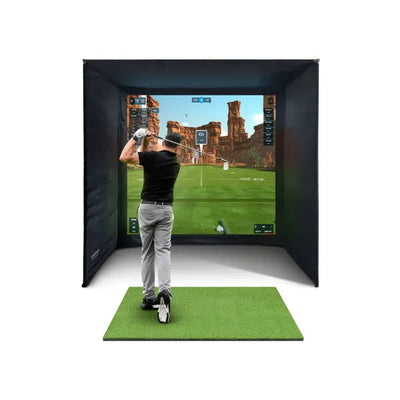
When customers come to us at OpenGolfer, they've usually spent hours researching launch monitors and enclosuresâbut many haven't given much thought to the PC that will power their simulator. That's a mistake. The computer is the brain of your setup, and getting it wrong means choppy gameplay, crashes during your round, or discovering your £2,000 launch monitor can't connect because you're missing the right USB ports.
We've installed hundreds of golf simulators across the UK, and we've seen every PC mistake imaginable: customers who bought a £300 laptop thinking it would run GSPro on high settings, builds with powerful CPUs but woefully inadequate GPUs, and setups where the PC physically won't fit in the simulator space. This guide will help you avoid those pitfalls.
Whether you're building a budget setup in your garage or creating a premium simulator room, we'll walk you through the exact specifications you need, recommend specific UK-available systems at three price tiers, and explain how to connect everything properly. Let's start with the fundamentals.
Why You Need a Dedicated PC for Your Golf Simulator
Can't you just use your old work laptop? Technically, yesâif your idea of simulator golf is watching PowerPoint-quality graphics stutter across the screen. But if you want the immersive experience that makes simulator golf worth doing, you need a proper PC.
Modern golf simulator software like GSPro, E6 Connect, and TGC 2019 are essentially video games with highly detailed 3D graphics. They're rendering realistic grass textures, calculating ball physics in real-time, simulating wind effects, and displaying everything at high frame rates. That requires a dedicated graphics card (GPU), not the integrated graphics chip in your work laptop.
Here's what a proper simulator PC needs to handle simultaneously:
- 3D graphics rendering at 1080p or 4K resolution
- Launch monitor data processing via USB, WiFi, or Ethernet
- Dual display output (one for the projector, one for your monitor)
- Background software for launch monitor interfaces (FSX, SkyTrak Cloud, etc.)
- Video recording if you want to capture your rounds
Your five-year-old laptop with integrated Intel graphics simply cannot do this. We've tested it. You'll get 15-20 frames per second on low settings, the launch monitor will disconnect randomly, and the experience will be so frustrating you'll stop using your simulator within a month.
A dedicated PCâeven a budget oneâtransforms the experience. Smooth 60fps gameplay, instant shot registration, no crashes, and graphics that actually look like the real courses. That's what we're building towards.
Understanding PC Specs: What Each Component Does
Before we dive into specific builds, let's demystify the jargon. PC specs can be intimidating, but you only need to understand four core components for a simulator build:
CPU (Processor)
The CPU is your PC's brain. For golf simulators, you don't need the absolute latest chipâmost simulator software is more dependent on GPU than CPU. A mid-range processor from the last two to three years will handle everything comfortably.
What to look for: Intel Core i5 (11th gen or newer) or AMD Ryzen 5 (5000 series or newer). These provide plenty of processing power for GSPro, E6 Connect, and TGC 2019 without adding unnecessary cost.
GPU (Graphics Card)
This is the most critical component. The GPU renders all those beautiful 3D graphics. Skimp here and you'll regret it every time you play.
Minimum: NVIDIA GTX 1660 Super or AMD RX 6600
Recommended: NVIDIA RTX 4060 or AMD RX 7600
Premium: NVIDIA RTX 4070 or AMD RX 7800 XT (for 4K resolution)
We'll go much deeper on GPUs in a dedicated section below, but here's the rule: don't buy a PC without a dedicated graphics card. If the listing says "Intel UHD Graphics" or "integrated graphics," keep scrolling.
RAM (Memory)
RAM is your PC's short-term memory. Simulator software needs room to breathe, especially when running launch monitor interfaces in the background.
Minimum: 16GB
Recommended: 32GB (especially if you plan to record gameplay or run other software)
Anything less than 16GB will cause stuttering and crashes. We learned this the hard way during our early installations.
Storage
You need two things: enough space for your software and fast load times.
Minimum: 500GB NVMe SSD
Recommended: 1TB NVMe SSD
Never buy a system with a traditional hard drive (HDD) as the primary drive. SSDs are exponentially faster and dramatically reduce loading times when launching software or switching courses.

Minimum vs Recommended Specs for Each Simulator Software
Different simulator platforms have different requirements. Here's what you actually need for the most popular options in the UK:
GSPro (Most Demanding)
GSPro is the gold standard for simulator softwareâstunning graphics, incredible course selection, and active multiplayer. It's also the most demanding on your PC.
Minimum Specs (1080p, Medium Settings):
- CPU: Intel Core i5-10400 or AMD Ryzen 5 3600
- GPU: NVIDIA GTX 1660 Super (6GB VRAM)
- RAM: 16GB
- Storage: 500GB SSD
- OS: Windows 10 or 11
Recommended Specs (1080p, High Settings):
- CPU: Intel Core i5-13400 or AMD Ryzen 5 7600
- GPU: NVIDIA RTX 4060 (8GB VRAM)
- RAM: 32GB
- Storage: 1TB NVMe SSD
- OS: Windows 11
Premium Specs (4K, Ultra Settings):
- CPU: Intel Core i7-13700 or AMD Ryzen 7 7700X
- GPU: NVIDIA RTX 4070 (12GB VRAM)
- RAM: 32GB
- Storage: 1TB NVMe SSD
- OS: Windows 11
We run GSPro on the recommended specs at our showroom, and it's buttery smooth at 1080p with all settings maxed. If you're serious about GSPro, don't go below the minimum.
E6 Connect (Moderate Requirements)
E6 Connect offers excellent graphics with slightly lower demands than GSPro. It's the software that comes with most Foresight bundles.
Minimum Specs (1080p):
- CPU: Intel Core i5-9400 or AMD Ryzen 5 3600
- GPU: NVIDIA GTX 1650 (4GB VRAM)
- RAM: 16GB
- Storage: 500GB SSD
Recommended Specs (1080p, High Settings):
- CPU: Intel Core i5-12400 or AMD Ryzen 5 5600
- GPU: NVIDIA RTX 3060 (12GB VRAM) or RTX 4060
- RAM: 16GB
- Storage: 1TB SSD
TGC 2019 (Lightest Requirements)
TGC 2019 is older software with more forgiving requirements. It's what we recommend for budget builds.
Minimum Specs:
- CPU: Intel Core i3-10100 or AMD Ryzen 3 3300X
- GPU: NVIDIA GTX 1650 (4GB VRAM)
- RAM: 16GB
- Storage: 250GB SSD
Recommended Specs:
- CPU: Intel Core i5-11400
- GPU: NVIDIA GTX 1660 Super
- RAM: 16GB
- Storage: 500GB SSD
If you're on a tight budget and primarily using TGC 2019, you can get away with less powerful hardware. Just know you won't be able to run GSPro smoothly if you upgrade your software later.
Want to dive deeper into software options? Read our full comparison of GSPro vs E6 Connect vs TGC 2019.
PC vs Laptop: Which Is Better for Simulator Golf?
We get asked this constantly: "Can I just use a gaming laptop?" The short answer is yes, but there are significant trade-offs.
Advantages of Desktop PCs
- Better value: You get more performance per pound with a desktop
- Upgradability: Swap out the GPU or add more RAM in the future
- Better cooling: Desktops don't thermal throttle during long simulator sessions
- More ports: Multiple USB ports for launch monitors, controllers, and accessories
- Powerful GPUs: Desktop RTX 4060 outperforms laptop RTX 4060 significantly
Advantages of Laptops
- Portability: Take it to a friend's simulator or use it for other purposes
- Compact: Easier to hide in a small simulator space
- Built-in display: No need for a separate monitor for menus
- All-in-one: Built-in keyboard, trackpad, and speakers
Our Recommendation
For 90% of customers, we recommend a desktop PC. Here's why: a £900 desktop will significantly outperform a £1,200 gaming laptop, and you'll have better thermals during those three-hour simulator sessions. Laptops thermal throttle when they get hot, which means your frame rates drop after 30-40 minutes of gameplay.
The only exception? If you genuinely need portabilityâmaybe you split time between two properties, or you want to bring your PC to a friend's simulator. In that case, look for a gaming laptop with at least an RTX 4060 laptop GPU and expect to pay £1,200-1,500 for decent performance.
Also, be aware that laptop GPUs are not equivalent to their desktop counterparts. An RTX 4060 laptop GPU performs roughly 20-30% worse than an RTX 4060 desktop GPU due to power and thermal constraints.
Pre-Built PCs vs Custom Builds: UK Pricing Breakdown
Should you buy a pre-built system or build your own? Both have merit, and the right choice depends on your technical confidence and time availability.
Pre-Built PCs: Pros and Cons
Pros:
- No assembly requiredâplug in and play
- Warranty coverage for the entire system
- Pre-installed Windows
- Quality-tested before shipping
Cons:
- £100-200 premium over equivalent custom build
- Sometimes includes weaker components (cheap PSU, slow RAM)
- Less control over specific parts
Best UK Pre-Built Brands: AWD-IT, Scan 3XS, CCL Computers, PC Specialist. All offer simulator-ready systems with proper GPUs.
Custom Builds: Pros and Cons
Pros:
- Save £100-200 vs pre-built
- Choose every component for your specific needs
- Higher quality parts for the same budget
- Satisfaction of building it yourself
Cons:
- Requires 2-3 hours of assembly time
- Need basic technical knowledge (or YouTube tutorials)
- Individual component warranties rather than system warranty
- Need to install Windows yourself
Our Take
If you've never built a PC before and don't want to learn, buy a pre-built from a reputable UK builder like Scan or AWD-IT. The £150 premium is worth the peace of mind.
If you're comfortable following YouTube tutorials and want maximum value, build it yourself. Modern PC building is much easier than it was a decade agoâeverything clicks together like adult LEGO.
For our example builds below, we'll provide both pre-built recommendations and custom build parts lists with UK pricing.
UK PC Recommendations: Three Budget Tiers
Let's get specific. Here are three complete PC builds at different budget points, all using UK-available components with current market pricing.

Budget Tier: £600-800 (TGC 2019 / E6 Connect on Medium Settings)
This tier gets you a functional simulator PC that will run TGC 2019 smoothly and handle E6 Connect on medium settings. It's perfect if you're building your first simulator and want to keep costs down.
Pre-Built Recommendation: AWD-IT Ranger Gaming PC (£699)
- CPU: Intel Core i5-12400F (6-core)
- GPU: NVIDIA GTX 1660 Super 6GB
- RAM: 16GB DDR4
- Storage: 500GB NVMe SSD
- PSU: 550W 80+ Bronze
- Case: Mid-tower with good airflow
Custom Build Parts List (£630 from Scan/Overclockers UK):
- CPU: AMD Ryzen 5 5600 (£115)
- Motherboard: MSI B550M PRO-VDH WiFi (£90)
- GPU: NVIDIA GTX 1660 Super 6GB (£180)
- RAM: 16GB (2x8GB) DDR4-3200 (£45)
- Storage: 500GB WD Blue SN570 NVMe (£35)
- PSU: Corsair CV550 550W (£45)
- Case: Cooler Master Q300L (£40)
- CPU Cooler: Stock Ryzen cooler (included)
- Windows 11: £80 (or use unactivated version)
What You Get: Smooth 60fps gameplay in TGC 2019 at 1080p on high settings. E6 Connect will run at medium-high settings. GSPro will run but you'll need to turn settings down to medium for consistent 60fps.
Limitations: The GTX 1660 Super is the minimum GPU we recommend, and it only has 6GB of VRAM. You won't be running 4K resolution, and GSPro on ultra settings will struggle. But for most first-time simulator owners, this tier delivers excellent value.
Mid-Range Tier: £900-1,200 (GSPro on High Settings, Future-Proofed)
This is the sweet spot. A PC in this range will handle GSPro beautifully at 1080p, give you headroom for upgrades, and last 4-5 years before feeling dated.
Pre-Built Recommendation: Scan 3XS Gamer RTX (£1,099)
- CPU: Intel Core i5-13400F (10-core)
- GPU: NVIDIA RTX 4060 8GB
- RAM: 32GB DDR4
- Storage: 1TB NVMe SSD
- PSU: 650W 80+ Bronze
- 3-year warranty
Custom Build Parts List (£950):
- CPU: Intel Core i5-13400F (£180)
- Motherboard: MSI B660M PRO WiFi (£130)
- GPU: NVIDIA RTX 4060 8GB (£280)
- RAM: 32GB (2x16GB) DDR4-3200 (£75)
- Storage: 1TB Kingston NV2 NVMe (£55)
- PSU: Corsair RM650 650W Gold (£80)
- Case: Fractal Design Meshify C (£80)
- CPU Cooler: Thermalright Peerless Assassin 120 (£35)
- Windows 11: £80
What You Get: This is our most popular recommendation for serious simulator builds. GSPro runs at 1080p on high-ultra settings with 60fps+, E6 Connect runs maxed out, and you have enough power for future software updates. The RTX 4060 is a significant step up from the 1660 SuperâDLSS support, better ray tracing, and 8GB VRAM.
Who It's For: If you're investing in a quality simulator setup with a Mevo Gen 2 or Foresight GC3S, this tier matches that investment. You're spending £3,000-5,000 on the simulatorâdon't bottleneck the experience with a budget PC.
Premium Tier: £1,400-2,000 (4K Resolution, Future-Proofed for 5+ Years)
This tier is for customers who want the absolute best experience: 4K resolution, ultra settings in GSPro, and a PC that won't need upgrading for many years.
Pre-Built Recommendation: PC Specialist Fusion Pro (£1,699)
- CPU: AMD Ryzen 7 7700X (8-core)
- GPU: NVIDIA RTX 4070 12GB
- RAM: 32GB DDR5
- Storage: 1TB Gen4 NVMe SSD
- PSU: 750W 80+ Gold Modular
- RGB lighting, premium case
Custom Build Parts List (£1,450):
- CPU: AMD Ryzen 7 7700X (£270)
- Motherboard: MSI B650 PRO WiFi (£180)
- GPU: NVIDIA RTX 4070 12GB (£500)
- RAM: 32GB (2x16GB) DDR5-6000 (£110)
- Storage: 1TB Samsung 980 Pro Gen4 NVMe (£90)
- PSU: Corsair RM750x 750W Gold (£110)
- Case: Lian Li Lancool II Mesh (£100)
- CPU Cooler: be quiet! Dark Rock Pro 4 (£75)
- Windows 11: £80
What You Get: This is a no-compromises build. GSPro at 4K resolution with ultra settings, over 60fps, DLSS 3 support for even higher frame rates, and enough power to handle any simulator software released in the next five years. The RTX 4070 is a beastâ12GB VRAM, excellent ray tracing, and low power consumption.
Who It's For: Customers with a dedicated simulator room, a Foresight GCQuad or Golfzon Wave, and a 4K projector or high-end display setup. This is showroom-quality performance.
The GPU Deep Dive: What You Actually Need
The GPU is the single most important component for simulator performance, so let's go deeper. Here's what you need to know about choosing the right graphics card.
NVIDIA vs AMD: Which Should You Choose?
Both NVIDIA and AMD make excellent GPUs, but for simulator golf, we lean towards NVIDIA for two reasons:
- Better software optimisation: GSPro and E6 Connect are both optimised for NVIDIA cards
- DLSS technology: NVIDIA's DLSS (Deep Learning Super Sampling) boosts frame rates by 30-50% in supported games
That said, AMD cards often offer better value. An AMD RX 7600 performs similarly to an RTX 4060 but costs £30-40 less. If you're on a tight budget, AMD is a solid choice.
VRAM: How Much Do You Need?
VRAM (video memory) stores textures and graphics data. More VRAM means higher resolution textures and better performance at 4K.
- 6GB VRAM: Minimum for 1080p (GTX 1660 Super)
- 8GB VRAM: Comfortable for 1080p, adequate for 4K on medium settings (RTX 4060)
- 12GB VRAM: Ideal for 4K on ultra settings (RTX 4070)
Don't buy a card with 4GB VRAMâit's not enough for modern simulator software. We've had customers try it with E6 Connect and hit VRAM limits constantly, causing stuttering and crashes.
Specific GPU Recommendations by Budget
| GPU | UK Price | Best For | Performance |
|---|---|---|---|
| GTX 1660 Super | £180 | Budget builds, TGC 2019 | 1080p medium-high |
| RTX 4060 | £280 | GSPro at 1080p | 1080p ultra, 4K medium |
| AMD RX 7600 | £240 | Value alternative to 4060 | 1080p ultra |
| RTX 4060 Ti | £380 | High-refresh 1080p | 1080p ultra 120fps |
| RTX 4070 | £500 | 4K gaming | 4K ultra 60fps+ |
| AMD RX 7800 XT | £480 | 4K value option | 4K high-ultra |
Our recommendation: if you can afford it, the RTX 4060 is the best value GPU for simulator golf. It's the minimum we'd recommend for GSPro, and it handles everything beautifully at 1080p.
How Launch Monitors Connect to Your PC
Your launch monitor needs to talk to your PC, and the connection method matters. Here's what you need to know for the most popular launch monitors in the UK.
USB Connection (Most Common)
Monitors like the Garmin Approach R10, Rapsodo MLM2PRO, and Voice Caddie SC4 connect via USB. This is the most reliable methodâlow latency, no dropouts, and simple setup.
What you need: A free USB 3.0 port (the blue ones). If your PC is far from your hitting area, buy a quality USB 3.0 active extension cable (up to 10 metres). Cheap cables cause dropouts.
WiFi Connection
The FlightScope Mevo+ and Mevo Gen 2 can connect via WiFi. This is convenient but can introduce latency if your WiFi network is congested.
What you need: A dedicated WiFi network for your simulator (not your main home WiFi). Use a separate router or access point in your simulator space. This eliminates interference from other devices.
Pro tip: Even though the Mevo Gen 2 supports WiFi, we recommend using the USB connection for lower latency. Save WiFi for when you're using the Mevo outdoors on the range.
Ethernet Connection
The Foresight GC3S, GCQuad, and Bushnell Launch Pro (Foresight GC3) use Ethernet. This is the gold standardâultra-low latency and rock-solid reliability.
What you need: A free Ethernet port on your PC. Most modern motherboards include Gigabit Ethernet. If your PC is far from the launch monitor, run a Cat6 Ethernet cable through your walls or use cable raceways.
Direct HDMI Connection (Golfzon Wave)
The Golfzon Wave is uniqueâit's an all-in-one system with a built-in computer. You don't need a separate PC. The Wave outputs directly to your projector via HDMI.
If you're buying a Golfzon Wave bundle, you can skip this entire PC guideâit's included in the system.
USB Port Requirements
Make sure your PC has enough USB ports for everything:
- Launch monitor (1 port)
- Keyboard and mouse (2 ports, or 1 if using wireless)
- Game controller or putting mat (1 port)
- External storage for recordings (1 port, optional)
Most desktop PCs have 6-8 USB ports on the rear panel plus 2-4 on the front. If you need more, buy a powered USB 3.0 hub (£20-30).

Running a Projector from Your PC: Dual Display Setup
Your simulator PC needs to output to two displays: your projector (for the gameplay) and a monitor (for menus and settings). Here's how to set this up properly.
What You Need
- HDMI cable to projector: Length depends on your room layout. For most setups, a 5-10 metre HDMI 2.0 cable is sufficient. If you're running over 10 metres, use an HDMI 2.0 active cable or fibre optic HDMI cable to avoid signal degradation.
- Second HDMI cable (or DisplayPort) to monitor: This is for your control monitor. 2-3 metres is usually enough.
- Projector with 1080p or 4K input: See our projector guide for recommendations.
Setting Up Dual Displays in Windows
Once everything is connected:
- Right-click your desktop and select Display Settings
- You should see two displays listed: Display 1 (monitor) and Display 2 (projector)
- Under "Multiple displays," select Extend these displays
- Drag the display icons to match your physical setup (e.g., projector is above monitor)
- Set your projector to the correct resolution (1920x1080 for 1080p, 3840x2160 for 4K)
- Click Apply
Launching Simulator Software on the Projector
Most simulator software lets you choose which display to use:
- GSPro: In settings, select your projector as the primary display
- E6 Connect: Goes full-screen on whichever display you launch it fromâdrag the window to your projector before going full-screen
- TGC 2019: In settings, select output display
Keep menus and launch monitor interfaces on your control monitor. This way you can adjust settings without interrupting gameplay on the projector.
Resolution and Refresh Rate Settings
Most golf simulator projectors are 1080p (1920x1080) at 60Hz. This is what we recommend for 95% of setupsâit's the sweet spot for performance and image quality.
If you have a premium 4K projector and an RTX 4070 GPU, you can run at 4K (3840x2160) at 60Hz. Just know that 4K requires significantly more GPU power. If your frame rates drop below 60fps, reduce the resolution to 1080p.
Higher refresh rates (120Hz, 144Hz) don't matter much for golf simulatorsâyou're swinging a club, not playing Counter-Strike. Stick with 60Hz and prioritise resolution and graphics settings instead.
Common Dual Display Issues
"My projector isn't detected":
- Check the HDMI cable is fully seated at both ends
- Try a different HDMI port on your GPU
- Power cycle the projector
- Update your GPU drivers
"The image is stretched or squashed":
- Check your projector's aspect ratio setting (should be 16:9)
- In Windows Display Settings, verify the resolution matches your projector's native resolution
"I'm getting screen tearing":
- Enable V-Sync in your simulator software settings
- If using NVIDIA, enable G-Sync if your projector supports it
Mini PC Options for Cleaner Installs
Don't have room for a full-sized tower PC in your simulator space? Mini PCs are an increasingly popular option, especially for garage builds where space is tight.

What Is a Mini PC?
A mini PC is a compact computerâtypically the size of a small bookâthat delivers desktop-class performance in a tiny footprint. You can mount them on the wall, hide them behind your projector, or tuck them on a shelf.
Can Mini PCs Handle Simulator Software?
It depends on the specs. Most cheap mini PCs (£200-400) use integrated graphics, which won't run GSPro or E6 Connect properly. But premium mini PCs with dedicated GPUs can handle simulator software beautifully.
Recommended Mini PCs for Simulators (UK-Available)
Budget: Beelink SER6 Pro (£450)
- CPU: AMD Ryzen 7 6800H
- GPU: AMD Radeon 680M (integrated)
- RAM: 32GB
- Storage: 500GB SSD
- Good for: TGC 2019 on medium-high settings, E6 Connect on low-medium settings
- Not good for: GSProâintegrated graphics struggle
Mid-Range: Minisforum EliteMini UM780 XTX (£650)
- CPU: AMD Ryzen 7 7840HS
- GPU: AMD Radeon 780M (integrated)
- RAM: 32GB
- Storage: 1TB SSD
- Good for: E6 Connect on medium settings, TGC 2019 on high settings
- Limitations: GSPro will run but you'll need to turn settings down
Premium: Custom Mini-ITX Build with GPU (£1,100)
If you want a compact PC that truly handles GSPro, you need a mini-ITX build with a dedicated GPU:
- Case: Cooler Master NR200P (13.5L, £80)
- CPU: Intel Core i5-13400 (£180)
- Motherboard: ASRock B660M-ITX (£120)
- GPU: NVIDIA RTX 4060 (£280)âthis is the key component
- RAM: 32GB DDR4 (£75)
- Storage: 1TB NVMe SSD (£55)
- PSU: Corsair SF750 SFX PSU (£130)
- CPU Cooler: Noctua NH-L9i (£40)
- Windows 11: £80
This build is roughly 13 litres (vs 40-50 litres for a standard tower) but delivers the same performance as our mid-range desktop recommendation. It's perfect for clean installations where you want to hide the PC.
When to Choose a Mini PC
Mini PCs make sense if:
- Space is at a premium in your simulator room
- You want a clean, professional installation
- You're mounting the PC on a wall or behind your projector
- You don't need the absolute highest performance
If you're building a budget simulator or need maximum performance, stick with a standard desktop towerâbetter value and easier upgrades.
Common PC Mistakes and How to Avoid Them
We've seen every mistake imaginable during installations. Here are the most common onesâand how to avoid them:
1. Buying Too Cheap
The mistake: Trying to save money by buying a £300 used office PC or a £400 laptop with integrated graphics.
Why it fails: You end up with choppy gameplay, constant crashes, and such a poor experience that you stop using your simulator. Then you have to buy a proper PC anyway, wasting the first £300-400.
The fix: Budget a minimum of £600 for a simulator PC. If that's too much, wait and save until you can afford it. Your simulator is only as good as its weakest componentâdon't let the PC be the bottleneck.
2. Skimping on the GPU
The mistake: Buying a PC with a powerful CPU (e.g., i7) but a weak GPU (e.g., GTX 1650).
Why it fails: Simulator software cares far more about GPU than CPU. An i5 with an RTX 4060 will outperform an i9 with a GTX 1650 every time.
The fix: Prioritise GPU first, CPU second. If your budget is £1,000, spend £300 on the GPU and £180 on the CPU, not the other way around.
3. Not Enough VRAM
The mistake: Buying a GPU with 4GB VRAM (e.g., GTX 1650) thinking it's "good enough."
Why it fails: Modern simulator software uses 5-6GB VRAM even at 1080p. When you hit the VRAM limit, you get stuttering, texture pop-in, and crashes.
The fix: Minimum 6GB VRAM (GTX 1660 Super). Ideally 8GB+ (RTX 4060 or better).
4. Forgetting About USB Ports
The mistake: Buying a mini PC or laptop with only 2-3 USB ports.
Why it fails: You need ports for launch monitor, keyboard, mouse, game controller, and potentially external storage. You run out of ports and end up with a rat's nest of USB hubs.
The fix: Check the PC has at least 4 USB ports before buying. Desktop towers typically have 8-10, which is ideal.
5. Cheap PSU in Custom Builds
The mistake: Saving £30 by buying a no-name 500W power supply instead of a quality 650W unit from Corsair, EVGA, or Seasonic.
Why it fails: Cheap PSUs can't deliver stable power, causing crashes and hardware damage. We've had customers burn out their GPUs with terrible PSUs.
The fix: Never skimp on the PSU. Buy 80+ Bronze minimum from a reputable brand. Budget £50-80.
6. Placing the PC Too Far from the Projector
The mistake: Putting the PC in a cupboard 15 metres from the projector, then using a cheap 15-metre HDMI cable from Amazon.
Why it fails: HDMI signal degrades over distance. Cheap cables cause flickering, dropouts, or complete signal loss.
The fix: Place your PC within 10 metres of the projector. If you must go beyond 10 metres, use an HDMI 2.0 active cable (has a chip inside to boost the signal) or a fibre optic HDMI cable (good for 50+ metres).
7. Not Updating GPU Drivers
The mistake: Installing Windows, installing your simulator software, and never updating GPU drivers.
Why it fails: Old drivers cause crashes, poor performance, and compatibility issues. GPU drivers are updated monthly with performance improvements and bug fixes.
The fix: After building your PC, immediately download the latest NVIDIA drivers from nvidia.com/drivers or AMD drivers from amd.com/support. Set Windows Update to automatically install driver updates.
Future-Proofing Your Simulator PC
Technology moves fast. Here's how to build a PC that lasts 4-5 years without needing a complete replacement:
1. Buy More GPU Than You Need Today
If your budget allows, step up one GPU tier. Planning to run GSPro at 1080p? Buy an RTX 4060 Ti instead of an RTX 4060. The extra performance headroom means the GPU stays relevant for years longer as software becomes more demanding.
2. Get 32GB RAM Instead of 16GB
16GB is adequate today, but 32GB ensures you won't need to upgrade as simulator software becomes more complex. The cost difference is only £30-40, and upgrading RAM later is a hassle.
3. Buy a Quality 750W PSU
Even if your system only needs 500W today, a 750W PSU gives you headroom to upgrade to a more powerful GPU in three years without replacing the PSU. Quality PSUs last 7-10 years.
4. Choose a Motherboard with Upgrade Potential
For Intel builds, buy a B660 or B760 motherboardâthese support 12th and 13th gen CPUs, giving you CPU upgrade options.
For AMD builds, buy a B650 motherboardâsupports Ryzen 7000 series CPUs and will likely support future Ryzen generations.
5. Don't Cheap Out on Storage
Buy a 1TB SSD instead of 500GB. Simulator software is getting larger (GSPro is 50GB+, E6 Connect is 30GB+), and you'll want space for multiple software titles, recordings, and Windows updates.
6. Keep Your PC Clean and Cool
Dust kills PCs. Every 6 months, open the case and blow out dust with compressed air. Clean PCs run cooler and last years longer.
PC Setup Checklist for New Simulator Builds
You've bought or built your PC. Now what? Here's our step-by-step checklist for setting up your simulator PC properly:
Step 1: Install Windows and Update Everything
- Install Windows 11 (or Windows 10 if your hardware is older)
- Connect to the internet
- Go to Settings â Windows Update â Check for updates
- Install all Windows updates (may require multiple restarts)
- Install GPU drivers from nvidia.com or amd.com
- Restart your PC
Step 2: Configure Dual Displays
- Connect your projector and monitor
- Open Display Settings
- Set up extended displays (see dual display section above)
- Set correct resolutions for both displays
- Test by dragging a window between displays
Step 3: Install Simulator Software
- Download and install your chosen simulator software (GSPro, E6 Connect, TGC 2019)
- Launch the software and configure graphics settings
- Run the software in full-screen on your projector
- Adjust settings until you achieve smooth 60fps
Step 4: Connect and Configure Launch Monitor
- Install launch monitor software/drivers (FSX for Foresight, SkyTrak Cloud for SkyTrak, etc.)
- Connect launch monitor via USB, Ethernet, or WiFi
- Test connection in launch monitor software
- Calibrate if required (alignment, distance, etc.)
Step 5: Test and Optimise
- Play a full 9-hole round to test stability
- Monitor frame rates (press F11 in most software)
- Check for stuttering, crashes, or connection drops
- Adjust graphics settings if frame rates drop below 60fps
Step 6: Backup and Maintenance
- Create a Windows restore point
- Enable automatic Windows updates
- Set GPU drivers to auto-update
- Schedule monthly system maintenance (disk cleanup, dust removal)
Frequently Asked Questions
Do I need Windows 11 or is Windows 10 fine?
Windows 10 works perfectly for all simulator software. Windows 11 offers minor performance improvements with newer CPUs (12th gen Intel and Ryzen 7000) but isn't essential. If you're buying a new PC, it will come with Windows 11 by default. If you're building your own, either version is fineâWindows 10 support continues until October 2025.
Can I use a Mac for my golf simulator?
No. GSPro, E6 Connect, and TGC 2019 are all Windows-only software. Some launch monitors have Mac apps (SkyTrak, Garmin R10), but you're limited to basic practice modes without access to course play. If you own a Mac, you'll need to run Windows via Boot Camp or Parallels, but native Windows PCs offer far better performance. We strongly recommend a Windows PC.
How much power does a simulator PC use?
Our mid-range build (RTX 4060, i5-13400) draws approximately 250-300W under full load during gameplay. At UK electricity rates (roughly 24p per kWh), that's about 6-7p per hour. A three-hour simulator session costs around 20p in electricity.
Should I buy a pre-owned or refurbished PC?
It depends. Pre-owned office PCs are almost always a bad dealâthey have weak integrated graphics and can't run simulator software properly. However, refurbished gaming PCs from reputable UK sellers (like Tier1Tech or Box.co.uk) can offer excellent value. Look for systems with GTX 1660 Super or better GPUs, and make sure they come with a warranty. Avoid eBay gambles with "untested" systems.
Can I upgrade my existing PC instead of buying new?
Possibly. If your PC is less than five years old and has a decent CPU (Intel 9th gen or newer, AMD Ryzen 3000 or newer), you might be able to upgrade just the GPU. Check that your power supply can handle a new GPU (650W minimum for RTX 4060) and that your motherboard has a PCIe x16 slot. If your PC is older than five years, a full replacement is usually better value.
Do I need a wired or wireless keyboard and mouse?
Either works, but we prefer wireless for simulator setups. You're often standing several metres from the PC while navigating menus, and wireless peripherals give you freedom to move around. Buy a quality wireless combo (Logitech, Microsoft) with good battery life. Avoid ultra-cheap wireless peripheralsâthey have connection dropouts.
Will my PC work with multiple launch monitors?
Yes, most simulator PCs can handle multiple launch monitors simultaneously, though you'll typically only use one at a time. If you own both a FlightScope Mevo and a SkyTrak, for example, you can have both connected and switch between them in your simulator software. Just ensure you have enough USB ports.
Can I use a gaming controller instead of a mouse for simulator menus?
Some simulator software supports game controllers (Xbox or PlayStation controllers) for menu navigation, but it's clunky. We recommend keeping a wireless keyboard and mouse nearbyâit's far more intuitive for adjusting settings, browsing courses, and managing multiplayer sessions.
How often should I upgrade my simulator PC?
If you buy a mid-range or premium system, you shouldn't need to upgrade for 4-5 years. GPUs are usually the first component to feel dated. When your frame rates drop below 60fps even on low settings, it's time for a GPU upgrade (or full system replacement if the CPU is also outdated). RAM and storage are easy to add as needed.
Final Thoughts: Match Your PC to Your Investment
The most common mistake we see is customers who invest £4,000 in a premium simulator setupâGC3S bundle, quality projector, properly sized roomâthen try to run it on a £400 budget PC. The experience is ruined by choppy graphics and crashes.
Your PC should match your overall simulator investment. If you're spending £2,000-3,000 on your simulator, budget £600-800 for the PC. If you're building a £5,000-7,000 premium setup, invest £1,200-1,500 in the PC. The computer is not the place to cut cornersâit's the engine that drives the entire experience.
Conversely, don't overbuild your PC beyond what you need. If you're running TGC 2019 at 1080p with a SkyTrak, a £600 budget build is perfectly adequate. Save your money for other upgrades like a better hitting mat or a quality projector screen.
For most customers, our mid-range recommendation (RTX 4060, i5-13400, 32GB RAM, £900-1,100) is the sweet spot. It handles GSPro beautifully, gives you room to grow, and lasts years without needing upgrades.
If you're ready to build your complete simulator package, explore our simulator bundlesâeach comes with a launch monitor, enclosure, hitting mat, and everything you need except the PC and projector. Or start with our complete UK buyer's guide to understand all the components.
Need help with your PC choice for your specific simulator setup? Get in touch with our teamâwe've built hundreds of simulator PCs and can recommend the perfect system for your needs and budget.

Free Home Golf Simulator Design Consultation
Not sure on space, screen or launch monitor? Chat directly with Tom, OpenGolfer’s founder — he has designed hundreds of home setups and will tell you exactly what fits your room and budget.
- Send your room size (or a photo) — get a tailored layout and spec for your space, ceiling height included
- Personal replies from a real golfer, not a call centre
- Honest advice on what to buy — and what not to
Usually replies within the hour, 8am–8pm · prefer to talk? 02033 768500


Leave a comment