
How to Connect Your Home Golf Simulator to E6 Connect UK: Complete Guide (2026)

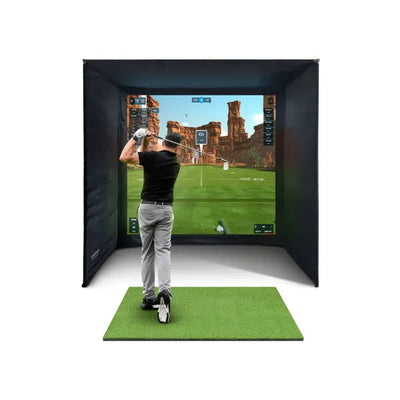
E6 Connect is the other major simulator software platform alongside GSPro, and for many UK home golf simulator owners it is the preferred choice. It features licensed real-world courses including Pebble Beach and St Andrews, a polished interface, and direct integration with most launch monitors without needing a separate connector app. The trade-off is a subscription model rather than a one-off purchase, which some prefer for its lower entry cost and guaranteed updates.
This guide walks through connecting every launch monitor in the OpenGolfer range to E6 Connect, explains the subscription tiers, and helps you get the most from the platform for your home golf simulator sessions.

E6 Connect Overview for Home Golf Simulator Owners
E6 Connect runs on PC and iPad. The PC version delivers the full experience with highest-quality graphics and the complete course library. The iPad version offers portability and convenience for simpler setups.
Subscription Tiers
Basic (Free): Five courses with limited features. Enough to test the connection and decide if you like the platform. Available to all launch monitor owners.
Game Improvement (approximately 15 pounds per month): Adds practice modes, shot analytics, and the full course library rotation. Courses rotate monthly with a selection of 5 to 10 available at any time.
Player's Pass (approximately 25 pounds per month): All courses unlocked permanently, multiplayer, tournament play, and custom game modes. The most popular tier for regular users.
Annual pricing: Both paid tiers offer discounts for annual subscription. Player's Pass annual is approximately 200 pounds, saving roughly 100 pounds over monthly billing. For cost comparison, see our price breakdown.
Connecting the FlightScope Mevo Gen 2 to E6 Connect
The Mevo Gen 2 connects to E6 Connect through the FlightScope app, which communicates directly with E6 without needing a separate connector.
Step-by-Step Setup
Step 1: Install E6 Connect on your PC from the TruGolf website. Create an account and select your subscription tier.
Step 2: Power on the Mevo Gen 2 and connect your PC to the Mevo's Wi-Fi Direct network.
Step 3: Open E6 Connect. Navigate to Settings then Device. Select FlightScope as your launch monitor.
Step 4: E6 Connect searches for the Mevo automatically. When detected, the device status shows Connected.
Step 5: Select a course and tee off. Shot data from the Mevo feeds directly into E6 Connect. Ball flight, distance, and landing position appear on screen.
Dual Network Challenge
Just like with GSPro, connecting your PC to the Mevo's Wi-Fi means losing your regular internet connection. E6 Connect needs internet for licensing and some course data. Solutions: USB cable connection to the Mevo (preferred), USB Wi-Fi adapter for dual-network, or pre-cache courses while on your home network before switching to Mevo Wi-Fi.

Connecting the Foresight GC3S to E6 Connect
The GC3S connects via USB cable with E6 Connect detecting it through the Foresight software layer.
Step-by-Step Setup
Step 1: Install FSX Play from Foresight's website. This provides the drivers and communication layer for the GC3S.
Step 2: Connect the GC3S via USB cable. Open FSX Play and verify the device is detected.
Step 3: Install E6 Connect. In Settings then Device, select Foresight as the launch monitor type.
Step 4: E6 Connect communicates with the GC3S through the Foresight software. Status should show Connected.
Step 5: The USB connection means your PC's Wi-Fi remains available for internet. E6 Connect accesses courses and licensing online while the GC3S feeds shot data via USB. No network conflicts.
Connecting the Foresight GC3 to E6 Connect
The GC3 connection process mirrors the GC3S. Select GC3 as the device type in E6 Connect settings. The overhead camera provides club data that E6 Connect displays in its analytics panel.
E6 Connect renders particularly beautiful club data visualisations. Face angle, club path, and attack angle are displayed graphically alongside each shot. This makes the GC3 and E6 Connect combination especially powerful for practice sessions.

Best E6 Connect Courses for Your Home Golf Simulator
E6 Connect's strength is its licensed courses. These are officially surveyed and accurately recreated.
Pebble Beach: The crown jewel. Every UK golfer has watched the US Open here. Playing it at home is a genuine thrill. Hole 7 is as intimidating on screen as on television.
St Andrews Old Course: The Home of Golf. E6 Connect's version captures the links character beautifully. The Swilcan Bridge is there.
Bandon Dunes: A less well-known gem. Wind-swept coastal links with stunning visuals.
Wade Hampton: Mountain golf with dramatic elevation changes. Shows off E6's terrain rendering. The course demonstrates why E6 Connect's graphics engine is considered the best in the simulator industry. Elevation changes affect club selection, making this course excellent for practising course management skills that transfer to real hilly courses across the UK and beyond. The scenery alone makes it worth downloading and playing multiple times throughout the year as the seasons change.
Practice facilities: E6 Connect includes a driving range with full data tracking. Excellent for structured practice sessions. See our practice drills guide for routines that work with E6's range mode.
E6 Connect vs GSPro for Your Home Golf Simulator
Both are excellent. The choice often comes down to personal preference and budget.
E6 Connect advantages: Licensed real courses, polished interface, direct launch monitor integration without connector apps, iPad support, better graphics on equivalent hardware.
GSPro advantages: One-off purchase cost, more courses total (200+), active online multiplayer community, community-created courses, more customisation options.
Many owners run both. GSPro for daily practice and online play, E6 Connect for playing licensed courses and showing off to friends. Read our full software comparison for a detailed breakdown.

Troubleshooting E6 Connect on Your Home Golf Simulator
E6 Connect does not detect launch monitor. Ensure the manufacturer's software detects the device first. E6 relies on that software layer. Restart both E6 and the manufacturer app. Check USB connections.
Subscription not activating. Log out and back into your E6 account. Check that payment processed successfully on the TruGolf website. Contact TruGolf support if the issue persists.
Course textures loading slowly. E6 streams some course data. On first play, courses take longer to load as textures download and cache. Subsequent plays are faster. Ensure a stable internet connection during first load.
Frame rate drops during play. Lower graphics settings in E6 options. Disable anti-aliasing and reduce shadow quality first, as these have the largest performance impact.
Shot data looks wrong. Verify calibration in the launch monitor's native software first. E6 displays whatever data it receives. If the launch monitor sends incorrect data, E6 will show incorrect results. See our calibration steps above or our environment guide.
Audio issues. E6 Connect includes ambient course audio and shot sounds. If audio is not playing, check that your PC audio output is set to the correct device. If using an HDMI connection to the projector, audio may route to the projector rather than your room speakers. Set the desired audio output device in Windows Sound Settings. For a better audio experience, connect separate speakers to your PC's audio jack and set these as the default output device. Quality speakers add significantly to the immersive experience of playing simulated rounds on famous courses.
Multiple monitor issues. If you use a dual-monitor setup for your PC, E6 may launch on the wrong screen. In E6 settings, specify which display to use for fullscreen mode. Alternatively, temporarily disable your secondary monitor before launching E6 to force it onto the projector display.
Licensing error on startup. E6 Connect verifies your subscription online each time it launches. If you see a licensing error, check your internet connection first. Then verify your subscription is active on the TruGolf account page. If you recently changed your payment method, the subscription may have lapsed. Renew it on the website and restart E6.
Course not loading after download. Some courses require additional data that downloads in the background after initial installation. Close and reopen E6 after downloading a new course. If the issue persists, delete the course from your library and redownload it. Ensure you have at least 5GB free storage for the largest courses. An SSD dramatically reduces course loading times compared to a traditional hard drive, making the wait between holes virtually instantaneous rather than a 10 to 30 second pause that breaks the flow of your round.
Frequently Asked Questions
Does E6 Connect require a monthly subscription?
E6 Connect offers a free basic tier with 5 courses. Paid tiers at approximately 15 or 25 pounds per month unlock additional courses and features. Annual billing saves roughly 30 percent.
Can I use E6 Connect on an iPad with my home golf simulator?
Yes. E6 Connect runs on iPad with compatible launch monitors connecting via Bluetooth. The experience is simplified compared to PC but works well for casual play and portability.
Is E6 Connect better than GSPro?
Different rather than better. E6 Connect has superior licensed courses and polish. GSPro has more courses total and a one-off purchase model. Many UK golfers use both depending on the session type.
Why does E6 Connect need an internet connection?
E6 uses online licensing verification and streams some course data. A stable connection is needed during play. Courses cache locally after first use, reducing ongoing bandwidth needs.
Can I play E6 Connect with friends?
Yes. E6 supports local multiplayer (taking turns on the same setup) and online multiplayer on the Player's Pass tier. Our simulator bundles are all E6-compatible for immediate setup.
E6 Connect System Requirements and Performance Tips
E6 Connect is more graphically demanding than GSPro. Here is what you need for a smooth home golf simulator experience.
Minimum specs: Windows 10, Intel i5 or AMD Ryzen 5, 8GB RAM, NVIDIA GTX 1060 or AMD RX 580. This runs E6 at medium settings. Course loading may be slow on a traditional hard drive.
Recommended specs: Windows 10 or 11, Intel i7 or Ryzen 7, 16GB RAM, NVIDIA RTX 3060 or better, SSD with 100GB free. This runs E6 at high or ultra settings with fast course loading and smooth frame rates.
Performance tips: Close all other applications during play. Disable Windows game bar. Set power plan to high performance. If frame rates drop, lower shadow quality first as this has the biggest impact. Anti-aliasing quality is the next setting to reduce. Course detail and texture quality can stay high without major performance cost.
iPad alternative: If your PC struggles with E6 Connect, the iPad version runs natively on Apple hardware with no performance concerns. You lose some graphical fidelity but gain simplicity and portability. Many simulator owners use iPad E6 for casual play and PC GSPro for serious practice. The iPad connects to compatible launch monitors via Bluetooth, keeping your setup simple and cable-free.
Getting the Most From E6 Connect on Your Home Golf Simulator
E6 Connect rewards exploration. Beyond round play, the platform includes features that enhance your home golf simulator experience significantly.
Shot tracer: E6 Connect displays a beautiful shot tracer showing your ball flight path. This visual feedback helps you see draw, fade, and trajectory patterns that numbers alone do not convey. Enable it in display settings.
Practice analytics: The practice range tracks every shot with detailed data. Export your session data to review trends over weeks and months. This turns your home golf simulator from a toy into a genuine training tool.
Virtual tournaments: E6 hosts scheduled online tournaments that you enter from your home golf simulator. Compete against other UK and international players on the same course with the same conditions. Leaderboards update in real time.
Custom rounds: Set specific conditions for each round. Wind speed and direction, pin positions, tee positions, and weather. This lets you practise course management in conditions you choose rather than random assignments.
Scoring history: E6 tracks your rounds by course, showing handicap trends, scoring averages, and detailed statistics over time. This long-term tracking data is invaluable for measuring improvement from your practice sessions on the simulator.
Start with the complete UK buyer's guide and browse our bundles to find the right setup for your home.

Free Home Golf Simulator Design Consultation
Not sure on space, screen or launch monitor? Chat directly with Tom, OpenGolfer’s founder — he has designed hundreds of home setups and will tell you exactly what fits your room and budget.
- Send your room size (or a photo) — get a tailored layout and spec for your space, ceiling height included
- Personal replies from a real golfer, not a call centre
- Honest advice on what to buy — and what not to
Usually replies within the hour, 8am–8pm · prefer to talk? 02033 768500


Leave a comment