
Golf Simulator Lighting Guide: Create the Perfect Setup in Your UK Home

When we help customers plan their home golf simulator builds, lighting is almost always an afterthought. People spend weeks researching launch monitors and impact screens, then walk into their newly completed simulator room to discover the projector image is completely washed out by overhead spotlights, or the space feels like a clinical hospital ward rather than an inviting practice environment.
Lighting isn't just about being able to see the ball. It fundamentally affects projector performance, creates atmosphere for long practice sessions, and determines whether your simulator room becomes your favourite space in the house or a functional box you tolerate. After helping hundreds of UK customers optimise their lighting setups, we've learned that getting this right from the start saves considerable frustration and expense later.
This guide covers everything you need to create the perfect lighting environment for your golf simulator, from understanding lux levels and colour temperature to specific UK product recommendations with actual prices. Whether you're converting a single garage, spare bedroom, or purpose-built garden room, we'll show you exactly how to light it properly.

Why Lighting Matters in a Golf Simulator Room
The relationship between ambient light and projector performance is straightforward physics. Projectors work by shining light onto a surface. When competing ambient light hits that same surface, it reduces contrast and washes out the image. A projector rated at 3,000 lumens might produce a stunning image in a darkened cinema but look utterly washed out in a brightly lit garage.
Most affordable home projectors (the £400-£800 range popular for simulator builds) output between 2,500-4,000 lumens. This is sufficient for a good simulator experience, but only if ambient light is controlled. Professional simulator facilities often use 5,000+ lumen projectors specifically because they can't always control room lighting, but those units cost £2,000-£5,000.
Beyond projector performance, lighting affects the entire experience. Harsh fluorescent strips create an uninviting atmosphere. Bright overhead lights directly above where you stand cause glare and shadows on your setup position. No lighting at all makes it difficult to see your grip, check ball position, or navigate the space safely.
The goal is controllable, indirect lighting that provides enough illumination for comfortable use without compromising the projected image. This means dimmer switches, strategic placement, and understanding which types of light work for simulators.
The Critical Rule: Keep Light Off the Impact Screen
Before we discuss specific lighting types, understand this fundamental principle: no light source should shine directly onto your impact screen. This is the single most important rule for simulator lighting.
Every photon hitting your screen from a light fixture is competing with photons from your projector. Even a small amount of direct light dramatically reduces image contrast. A 60-watt LED downlight pointing at your screen can completely wash out a 3,000-lumen projector image.
This means you need to think carefully about light placement. Overhead lights should be positioned behind where you stand, not above the screen. Wall-mounted fixtures should angle away from the screen. LED strips should be concealed behind frames or in floor channels where they provide ambient bounce light rather than direct illumination.
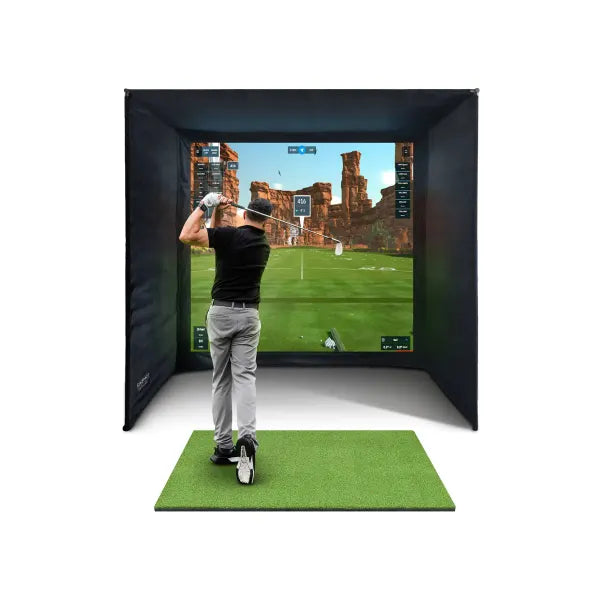
When we install SimSpace enclosures with their dark steel frames and premium velour-lined interiors, we always recommend keeping overhead lights at least 2-3 metres back from the screen plane. The dark enclosure materials help by absorbing stray light rather than reflecting it onto the screen.
Types of Lighting Explained
Professional lighting designers categorise light into four functional types. Understanding these helps you plan your simulator lighting effectively.
Ambient lighting provides overall room illumination. This is your general background light levelâtypically ceiling-mounted fixtures that light the entire space. In a simulator room, ambient lighting should be dimmable and positioned away from the screen.
Task lighting illuminates specific activities. In a simulator context, this might be a small desk lamp for checking statistics on a laptop, or under-shelf lighting for a drinks refrigerator. Task lighting is localised and doesn't need to fill the entire room.
Accent lighting highlights specific features. LED strips behind your enclosure frame or under floating shelves create visual interest and depth without contributing to screen washout. This is the most useful lighting type for simulators.
Decorative lighting serves aesthetic rather than functional purposes. Neon signs, illuminated golf memorabilia, or coloured uplighters fall into this category. These add personality but should be used sparingly and kept away from the screen area.
A well-designed simulator room uses all four types in balance, with heavy emphasis on dimmable ambient and strategic accent lighting.
Overhead Lighting: Getting the Basics Right
Most UK garages and spare rooms come with inadequate overhead lighting. Single-garage conversions often have a single bare bulb fixture. Double garages might have fluorescent strip lights. Spare bedrooms typically have a central ceiling rose with a basic pendant.
None of these work well for simulators.

Fluorescent strips must go. They're harsh, non-dimmable, flicker on camera (if you're recording swing videos), and provide poor colour rendering. Rip them out and start fresh.
The ideal overhead solution for most simulator rooms is 3-5 dimmable LED downlights positioned strategically around the space. These should be GU10 or integrated LED fittings with a minimum 80 CRI (Colour Rendering Index) for natural colour appearance.
Colour temperature matters. Light colour is measured in Kelvin (K). Lower numbers are warmer (more yellow/orange), higher numbers are cooler (more blue/white). For simulator use:
- 2700-3000K (Warm White): Best for playing sessions. Creates a relaxed, inviting atmosphere and doesn't interfere with projector colour balance. This should be your primary choice.
- 3500-4000K (Neutral White): Better for setup, maintenance, and cleaning when you need to see details clearly. Useful as a secondary option if you have multi-colour smart bulbs.
- 5000K+ (Cool White/Daylight): Avoid for simulator use. Too clinical and interferes with warm projector colour temperatures.
Positioning downlights: Place them in a horseshoe pattern behind and around your hitting position, never in front of you or above the screen. For a typical single-garage simulator (3m x 6m), we recommend four downlights: two in the rear corners behind where you stand, and two on the side walls midway down the room. For a double garage or larger space, add one or two more in the back third of the room.
Dimmer switches are mandatory. You need the ability to reduce light to 10-20% of maximum for playing, then increase to 100% for setup or when the simulator isn't in use. Cheap rotary dimmers (£8-15) work fine for standard LED bulbs. For smart bulbs, you'll control dimming via app rather than wall switch.
Expect to spend £60-120 on overhead lighting for a basic retrofit (£15-25 per downlight fitting + £30-40 for a dimmer switch + £20 electrician call-out if you're not comfortable with DIY). For new builds, your electrician should include this in the standard installation cost.
LED Strip Lighting: The Secret Weapon
This is where simulator lighting gets exciting. LED strips transform a functional room into a premium space while providing the perfect type of illumination for projector-friendly ambient light.

LED strips are flexible circuit boards with small LED diodes every few centimetres, available in various lengths (typically 1m to 5m per reel). They're powered by a 12V DC adapter, consume minimal electricity (a 5m strip uses about 24 watts), and can be stuck to almost any surface with adhesive backing.
Where to install LED strips in your simulator:
- Behind enclosure frame: The single most effective placement. Mount strips on the rear side of your enclosure frame (the side facing the wall) so light bounces off the wall behind the screen. This creates a subtle halo effect, adds perceived depth, and doesn't touch the screen surface. For a SimSpace enclosure with its dark steel frame and velour interior, this produces a particularly striking effectâthe frame appears to float, and the dark materials prevent any light spill onto the screen.
- Floor perimeter: Run strips along the base of walls (use aluminium channels for a clean finish). This provides low-level safety lighting without affecting the projector image and makes the room feel larger.
- Ceiling coving: If you have coving or can add simple box-section coving, mount strips in the recess for indirect uplighting. Excellent for ambient light that stays well away from the screen.
- Under shelving/furniture: Under-shelf lighting for any storage units, mini-fridges, or display shelves adds layers of light without central fixtures.
- Behind TV/monitor: If you have a wall-mounted display for non-golf use, bias lighting behind it reduces eye strain and looks professional.
RGB vs RGBW: Standard RGB strips can display millions of colours but produce poor white light (it looks pink or blue-tinted). RGBW strips add dedicated white LEDs and are strongly recommended for simulators. You get both colour options for atmosphere and clean white light when needed. Expect to pay £12-18 per 5m for basic RGB, £18-28 per 5m for RGBW.
Smart control: Budget strips come with infrared remote controls (adequate but limited). Smart strips integrate with Alexa, Google Home, or Apple HomeKit, allowing voice control and automation. This is transformative for simulator useâyou can create named scenes like "Golf Mode" (dim warm white), "Setup Mode" (bright neutral white), or "Social Mode" (medium warm with accent colour). The best-known brands are Govee (£25-40 per 5m kit with WiFi controller) and Philips Hue Lightstrip Plus (£65-75 per 2m starter, expandable to 10m).
For a typical single-garage simulator, budget £40-80 for basic LED strip lighting (10m of RGBW strip + controller + power supply), or £100-200 for a full smart-lighting installation with multiple zones and voice control.
Blackout Solutions for UK Rooms
Unless your simulator is in a windowless basement, you'll need to manage natural light. UK weather means daylight varies dramaticallyâbright summer afternoons create far more screen washout than overcast November mornings, but even cloudy daylight can reduce projector contrast by 40-60%.

Blackout roller blinds are the most practical solution for windows in simulator rooms. Look for blinds rated as "100% blackout" or "total blackout" rather than "room darkening" (which still allows 10-20% light through). Fitted roller blinds with side channels (rails that seal the edges) provide the best light blocking.
Expect to pay £25-45 for a basic blackout roller blind to fit a standard UK window (60cm x 90cm), or £60-120 for a larger garage window (120cm x 120cm). Made-to-measure services like Dunelm, Blinds2Go, or local fitters charge £80-200 depending on size and fitting complexity. For DIY installation, budget 45-60 minutes per window.
Blackout curtains work well for bedrooms converted to simulator use, maintaining the option to revert the room to normal use easily. Look for curtains with blackout lining or thermal blackout fabric (which also provides insulationâuseful in UK winters). Pair with a ceiling-fix curtain track rather than a pole to minimise light gaps at the top.
IKEA's MAJGULL blackout curtains (£30-40 per pair, 145cm x 250cm) are excellent value. John Lewis and Dunelm offer mid-range options (£50-100). For premium thermal blackout with pattern choices, expect £80-150 per pair from specialist retailers.
DIY window blocking for garages: Many single-garage conversions have small high windows (often 40cm x 40cm or 60cm x 40cm). For permanent simulator installations where the window won't be opened, a simple and effective solution is to cut a piece of 25mm PIR insulation board (Kingspan/Celotex) to fit the internal reveal, cover it with black fabric, and wedge it into place. This blocks light completely, adds insulation, and costs under £10 per window. It can be removed if needed but stays securely in place.
External shutters or film: Roller shutters on garage doors help with light control but are expensive (£400-800 installed). Reflective window film applied to the glass reduces light ingress and heat in summer but doesn't provide full blackout (typically 60-85% reduction). It's a partial solution unless combined with internal treatments.
For most UK simulator installations, we recommend blackout roller blinds for windows in heated rooms, and simple insulation board blocking for unheated garages.
Ceiling Treatment: The Often-Forgotten Element
White or light-coloured ceilings reflect ambient light, including light from your projector that bounces off the screen. This stray reflected light washes back onto the screen surface, reducing contrastâespecially noticeable in darker scenes in simulation software.
The solution is simple: paint the ceiling above and in front of your hitting position in dark matt paint. You don't need to paint the entire room black (unless you want a cinema aesthetic), just the area where light bounce affects the screen.
We recommend painting a 2m x 2m section centred on the screen in a dark grey, charcoal, or black matt emulsion. Dulux, Crown, or own-brand "period colours" ranges include suitable dark greys (Dulux "Jet Black," Crown "Charcoal," B&Q "Black Jack"). Matt finish is criticalâsatin or gloss reflects light and defeats the purpose.
A 2.5-litre tin (enough for two coats on 10-12 square metres) costs £15-30. If you're nervous about going too dark, start with a charcoal grey and assess the impact before committing to black. The difference in perceived projector contrast is immediately noticeable.
For rooms with exposed ceiling joists (common in garage conversions), paint the joists dark and consider adding black fabric between joists as acoustic treatment. This kills two birds with one stoneâimproves sound and eliminates ceiling light bounce.
Smart Lighting Scenes: Automate Your Experience
Once you've installed dimmable overhead lights and smart LED strips, programming lighting scenes transforms your simulator from a static space into an adaptive environment. Most smart lighting systems allow you to create and recall named scenes instantly.

Essential scenes for simulator use:
"Golf Mode" (playing sessions): Overhead lights at 10-15%, LED strips at 30-40% warm white (2700K). This provides just enough ambient light to see your setup and ball position without any screen washout. The projector image will look crisp and contrasty.
"Setup Mode" (maintenance/adjustment): Overhead lights at 100%, LED strips at 80-100% neutral white (3500-4000K). Full brightness for checking cables, adjusting enclosure tension, cleaning the mat, or fine-tuning projector alignment. You wouldn't play in this mode, but you need visibility for technical work.
"Social Mode" (when friends visit): Overhead lights at 40-50%, LED strips at 60% warm white with subtle accent colour (often a cool blue or green for golf-course feel). Balanced lighting that allows conversation, checking phones, and moving around the room safely while still maintaining decent projector image quality.
"Cinema Mode" (watching golf or other content): Overhead lights off, LED strips at 20% cool blue or purple behind the enclosure only. Creates a cinema atmosphere when you're using the projector to watch The Masters or golf instruction videos rather than playing.
"Standby Mode" (room not in use): All lights off except floor perimeter LED strips at 10% warm white. This provides just enough light to enter the room safely and see where you're going without wasting electricity.
With smart lighting, you can trigger these scenes by voice ("Alexa, set Golf Mode"), via smartphone app, or through automation ("When motion detected after 6pm, set Social Mode"). Some users integrate scenes with launch monitor powerâwhen the Mevo or GC3 turns on, lighting automatically switches to Golf Mode.
Philips Hue offers the most mature scene programming through its app. Govee provides good scene support at lower cost. Budget smart bulbs (TP-Link Tapo, IKEA TRÃ DFRI) have more limited scene functionality but still support basic on/off/dim automation through Alexa or Google Home routines.
UK Product Recommendations with Real Prices
Based on installations we've seen and feedback from customers, here are specific products that work well in UK simulator rooms as of 2026.
Overhead Dimmable LED Downlights:
- Screwfix LAP Fixed LED Downlight (£14.99 each, GU10 fire-rated, 4.5W, 2700K): Reliable budget option, dimmable with most standard dimmers. Pack of 4 typically £55-60.
- Aurora M10 Fixed LED Downlight (£18-22 each, integrated LED, 10W, 3000K, dimmable, high CRI): Step-up quality, excellent colour rendering for simulator use.
- Philips Hue White Ambiance GU10 (£22-28 each): Smart bulb option if you want app/voice control and adjustable colour temperature (2200K-6500K). Requires Hue Bridge (£45) for full functionality.
LED Strip Lighting:
- Govee RGBIC LED Strip (£29.99 for 5m, WiFi, app control, Alexa/Google compatible): Best value for smart RGBW strips. Excellent app with scene presets. Popular choice for simulator builds.
- Philips Hue Lightstrip Plus (£69.99 for 2m starter, expandable to 10m with £18 extensions): Premium option, seamless integration with Hue ecosystem, best colour accuracy and brightness.
- Amazon Basics LED Strip (£15.99 for 5m RGB with remote): Adequate if budget is very tight, but RGB-only (no white channel) and basic remote control.
- Lepro LED Strip Lights (£19.99 for 10m RGBW with remote): Good mid-range option, better white quality than Amazon Basics, IR remote (not smart).
Dimmer Switches:
- Varilight V-Pro 1-Gang 2-Way LED Dimmer (£12-15, up to 120W LED): Simple rotary dimmer, works with most dimmable LED bulbs, easy DIY install.
- Lightwave Smart Dimmer (£35-45, WiFi, works with Alexa/Google/HomeKit): Smart dimmer with app and voice control, no neutral wire required (works with UK 2-wire lighting circuits).
Blackout Blinds:
- Dunelm Blackout Roller Blind (from £25 for small, £40-70 for medium/large, made to measure available): Wide range of sizes, good blackout performance, includes fittings.
- IKEA FYRTUR Blackout Roller Blind (£135-195 depending on size, smart motorised): If you want remote-controlled blackout blinds that integrate with smart home, these are excellent value for motorised blinds.
Smart Home Hubs (if needed):
- Amazon Echo Dot (5th Gen) (£49.99): Alexa voice control for smart bulbs and strips.
- Google Nest Mini (£49): Google Assistant alternative.
- Philips Hue Bridge (£44.99): Required for full Hue functionality, supports up to 50 bulbs/strips.
Most of these products are available from Screwfix, Amazon UK, Argos, B&Q, or directly from manufacturer websites. Prices fluctuate with salesâGovee often discounts during Black Friday/Amazon Prime Day, Hue products during bank holidays.
Installation Guide: Basic DIY Steps
Most simulator lighting upgrades are DIY-friendly if you're comfortable with basic electrical work. However, any work involving mains wiring (230V) in UK domestic installations must comply with Part P of Building Regulations. For downlight installation or adding new circuits, use a qualified electrician or self-certify if you're a competent person registered with a scheme.
Installing LED downlights (replacing existing ceiling fixtures):
- Turn off the circuit at the consumer unit (fuse box) and test the circuit is dead with a voltage tester. Never assume a switch-off circuit is safe.
- Remove the old light fitting and check the existing wiring. Most UK lighting circuits are two-wire (live and neutral) or three-wire (live, neutral, earth). Identify which is whichâtypically brown=live, blue=neutral, green/yellow=earth.
- If installing fire-rated downlights in a ceiling with a room above, you may need to cut a hole using a holesaw (typically 65mm-85mm diameter depending on fitting). Follow manufacturer's sizing. For false ceilings or garage roofs (no room above), standard downlights are fine.
- Connect the downlight according to instructions (most have a connector block: live to live, neutral to neutral, earth to earth). Push the fitting into the ceiling holeâspring clips hold it in place.
- Fit the GU10 bulb (for GU10 fittings) or integrated LED module, restore power, and test.
- If adding a dimmer switch, replace the existing switch by disconnecting the old switch and connecting the dimmer in the same configuration. Most UK lighting switches are simple: live in, switched live out, earth terminal. Follow dimmer instructions carefullyâsome require minimum load or specific wiring.
Time required: 30-45 minutes per downlight for a straightforward replacement. 2-3 hours for a full room of 4-5 lights if you're working carefully and installing a new dimmer.
Installing LED strip lighting (low voltage, DIY-safe):
- LED strips run on 12V DC, making them safe to handle and install. The only mains voltage component is the plug-in power adapter.
- Clean the surface where the strip will mount (isopropyl alcohol or methylated spirit wipes work well). The adhesive backing needs a dust-free surface to stick properly.
- Measure and cut the strip to length if needed. LED strips have cut points marked every 5cm (look for scissor symbols and copper pads). Cut only at these points.
- Peel the backing and press the strip firmly into place. For behind-enclosure mounting, stick the strip to the rear face of the frame so light bounces off the wall behind. For floor perimeter or under-shelf, use aluminium channels (£8-15 per metre) for a professional finishâthe strip sits in the channel with a diffuser cover.
- Connect the strip to the controller. Most strips have a push-connector at one end. If you've cut the strip, you'll need to connect wires to the copper pads (soldering iron or solder-free connectors work).
- Plug in the power adapter and test. Use the remote or app to set colours and scenes.
Time required: 30-60 minutes for a simple 5m installation behind an enclosure frame. 2-3 hours for a complex multi-zone installation with aluminium channels and multiple reels.
For any work involving new circuits, junction boxes, or ceiling/wall penetration, consult an electrician. For low-voltage LED strips and replacing existing light fittings on a like-for-like basis, competent DIY is generally acceptable (but still follow Building Regs guidance).
Lighting for Different UK Room Types
Your lighting approach depends significantly on the room you're converting. Here's how to adapt the principles above to common UK simulator room types.
Single Garage (typically 3m x 5.5m-6m):
Usually has a high small window (or no window) and either a single bare bulb or old fluorescent strip. Replace with 4 dimmable downlights in a horseshoe pattern (two rear corners, two midway on side walls). Add 10m LED strip: 5m behind the enclosure frame, 5m along floor perimeter on left and right walls. If there's a window, use a simple insulation board block or blackout blind. Budget: £120-180 total.
Double Garage (typically 5-6m x 5.5-6m):
More space, often side windows as well as a rear window. Use 5-6 dimmable downlights (form a horsehoe plus one or two in the rear third centre). LED strips become more important for ambienceâ15m total (5m enclosure, 10m floor perimeter around three walls). Blackout blinds for 2-3 windows (budget £80-150). Dark ceiling paint over the screen area. Budget: £200-300 total.
Spare Bedroom (typically 3-4m x 3-4m):
Often has a central pendant light (remove and replace with 3-4 downlights in strategic positions). May have a large window with existing curtainsâadd blackout lining or replace with blackout curtains. LED strips behind enclosure (5m) and under any shelving units. Smart control is particularly useful here so the room can still feel like a bedroom when not in simulator use. Budget: £150-250.
Garden Room/Summer House (typically 3m x 4m to 4m x 5m):
Modern garden rooms often have large glazed sections (bi-fold doors, full-height windows). You'll need substantial blackoutâlikely motorised blinds or curtain tracking for the large glazed area (budget £400-800 for quality motorised solutions). LED downlights throughout (6-8 lights due to better ceiling insulation and more pleasant internal finish). This is where smart lighting really shinesâyou can create multiple modes for simulator use, entertainment, or relaxing space. Budget: £500-900 including substantial window treatments.
Basement (dimensions vary, often 4m x 5m-6m):
The dream scenario for simulatorsâno windows, often dark walls already, good sound isolation. You can go minimal on blackout but should invest in quality lighting because the space can feel cave-like without it. 5-6 dimmable downlights plus substantial LED strip installation (15-20m around perimeter, behind enclosure, and architectural features). Add RGB colour capability for atmosphereâbasements benefit from dynamic lighting. Budget: £180-280.
Regardless of room type, the principles remain: dimmable overhead, accent LED strips, blackout for windows, and dark ceiling treatment in the screen area.
Common Lighting Mistakes to Avoid
After reviewing dozens of customer installations, we see the same mistakes repeatedly:
1. Positioning downlights in front of the hitting position. This creates glare when you look up, shadows on the mat, and light spill onto the screen. Always position overhead lights behind or beside you, never in front.
2. Using non-dimmable lights. You absolutely need dimming capability. Non-dimmable installations force you to choose between washed-out projector images or playing in semi-darkness with most lights switched off.
3. Going too bright. More lumens isn't better for simulators. 400-500 lumens per downlight is plenty. High-output commercial LED downlights (800-1000 lumens) are too bright even when dimmedâthey often don't dim below 40-50%.
4. Cool white colour temperature. 5000K+ "daylight" bulbs look clinical and interfere with projector colour balance. Stick to 2700-3000K warm white for simulator use.
5. Installing LED strips on the front face of the enclosure frame. This shines light directly onto or across the screen. Always mount strips on the rear face (facing the wall) so light bounces back into the room without touching the screen.
6. Ignoring ceiling treatment. White ceilings reflect light back onto the screen. At minimum, paint the area above the screen matt dark grey. It's a £20 fix that makes a £500 difference to perceived image quality.
7. Cheap non-dimmable LED drivers on strip lights. If you buy separate LED strip components rather than a kit, ensure the power supply is dimmable. Standard 12V supplies often buzz or flicker when dimmed.
8. Inadequate blackout for daytime play. "Room darkening" blinds aren't sufficient. You need 100% blackout-rated products, preferably with side channels to seal light gaps.
9. No smart control or scenes. Manually adjusting multiple lights every time you play is tedious. Even basic smart bulbs with voice control make a huge quality-of-life difference.
10. Forgetting about cable management. LED strip cables, power adapters, and controllers need to be routed neatly. Use cable channels, trunking, or conceal cables behind the enclosure frame. Loose cables look messy and create trip hazards.
Budget Breakdown: What to Spend
Here are three realistic budget levels for lighting a typical single-garage simulator room (3m x 6m, one small window):
| Component | Basic (£50-80) | Mid-Range (£140-200) | Premium (£300-450) |
|---|---|---|---|
| Overhead Lights | Keep existing, add dimmer (£12) | 4x LED downlights + dimmer (£75) | 4x Philips Hue GU10 + Bridge (£135) |
| LED Strips | 5m basic RGB strip (£16) | 10m Govee RGBW smart (£50) | 10m Philips Hue strips (£160) |
| Blackout | DIY insulation board (£8) | Blackout roller blind (£35) | Made-to-measure blind + fitting (£90) |
| Ceiling Paint | Own-brand dark grey (£15) | Dulux Jet Black (£25) | Dulux Jet Black (£25) |
| Smart Control | IR remote (included) | Govee app control (included) | Full Hue ecosystem + voice |
| Installation | DIY (£0) | DIY (£0) | Partial professional (£40-80) |
| Total | £51-80 | £185-200 | £410-450 |
Basic: Functional but not fancy. Adds dimming to existing lights, one strip for basic ambience, blocks the window, paints the ceiling. Gets you 70% of the benefit for minimal outlay. Good starting point if you're testing simulator commitment before investing heavily.
Mid-range: This is the sweet spot we recommend for most installations. Proper dimmable downlights, smart LED strips with RGBW and app control, quality blackout, and professional ceiling treatment. Creates a genuinely premium environment without excessive cost. Pairs perfectly with a mid-range simulator bundle like the Mevo+ bundle or GC3 package.
Premium: Full smart-home integration with best-in-class components. Voice control, advanced scenes, highest-quality colour rendering, professional installation for peace of mind. Worth it if you're building a high-end space with a Foresight GC Quad or Trackman system where the simulator represents a £10,000-15,000 investment. At that level, spending £400 on lighting makes sense.
For spaces larger than a single garage, increase budgets by 30-50% (double garage) or 50-80% (garden room/basement). Additional square metreage requires more downlights and LED strip length.
Frequently Asked Questions
Q: Do I really need to control lighting for a golf simulator?
A: If you're using a projector (as opposed to an LED screen system), yes, absolutely. A typical 3,000-lumen projector produces a poor image in bright light. Controlling ambient light is the difference between a washed-out, low-contrast image and a crisp, immersive display. Even moderately priced lighting upgrades deliver dramatic improvements.
Q: What's the minimum number of lumens I should look for in LED downlights?
A: For simulator rooms, 400-500 lumens per downlight is ideal. This might sound low (typical household downlights are 600-800 lumens), but remember you're prioritising projector image quality over general task lighting. With 4-5 downlights at 400-500 lumens each, you'll have 2,000+ total lumens in the room, which is adequate when dimmed appropriately.
Q: Can I use the existing fluorescent strips in my garage if I add a dimmer?
A: Fluorescent tubes aren't dimmable with standard dimmers (you need special ballasts), they flicker on video recordings, and they cast harsh light. We strongly recommend removing them and replacing with LED downlights. The improvement in atmosphere and usability justifies the £60-100 expense.
Q: Will LED strips behind the enclosure frame damage the screen or frame?
A: No. LED strips generate minimal heat (a 5m strip producing 1,200 lumens generates about 18-20 watts of heatâroughly the same as a smartphone charger). They won't damage frames, fabric, or impact screens. The adhesive backing sticks securely to steel frames like those on SimSpace enclosures without leaving residue if removed carefully.
Q: How much electricity do LED strips use?
A: Very little. A typical 5m RGBW strip consumes 24 watts at full brightness. At UK electricity rates (approximately 24p per kWh as of 2026), running it for 3 hours per day costs about £1.60 per month. Even with multiple strips and overhead lights, simulator lighting typically adds £3-5 per month to electricity bills.
Q: Do I need to hire an electrician for LED strip installation?
A: No. LED strips run on 12V DC from a plug-in adapter, making them safe for DIY installation. You only need an electrician if you're installing new mains-voltage downlights, adding circuits, or replacing consumer units. Most lighting upgrades are DIY-friendly for anyone comfortable with basic tools.
Q: What's the difference between RGB and RGBW LED strips?
A: RGB strips combine red, green, and blue LEDs to create colours, but their "white" is actually a mix of RGB that looks pinkish or bluish. RGBW strips add a dedicated white LED channel, producing clean white light suitable for general illumination. For simulators, RGBW is worth the extra £6-10 because you'll use white light most often.
Q: My garage has no ceilingâjust exposed joists and roof felt. Can I still install downlights?
A: Yes, but not fire-rated downlights (which are designed for ceilings with rooms above). Use standard downlights or surface-mounted LED fixtures attached to ceiling joists or cross-battens. Alternatively, consider industrial-style pendant lights or track lighting if you prefer an exposed aesthetic. Paint joists and roof felt dark matt black to reduce light reflection.
Q: Will smart lighting work if my WiFi signal is weak in the garage?
A: It depends on the system. WiFi-based smart bulbs (Govee, TP-Link Tapo) need a decent WiFi signal. If your garage WiFi is weak, consider a WiFi extender (£20-30) or switch to Zigbee-based systems like Philips Hue, which create their own mesh network independent of WiFi (only the Bridge needs WiFi/Ethernet connection).
Conclusion: Small Investment, Huge Impact
Lighting is genuinely transformative for simulator spaces, yet it's often the last consideration in a build. We've seen customers spend £7,000 on a premium projector, launch monitor, and enclosure, only to use it under harsh fluorescent strips that wash out the image and create an uninviting environment.
The good news is that unlike projectors or launch monitors, lighting upgrades don't require huge budgets. For £140-200, you can completely transform the usability and atmosphere of your simulator room. Even the basic £50-80 approachâadding a dimmer, painting the ceiling, installing one LED strip, and blocking the windowâdelivers 70% of the benefit.
If you're planning a new simulator build or want to upgrade an existing setup, prioritise these five actions:
- Install dimmable overhead lighting positioned behind your hitting areaânever in front of the screen
- Add LED strip lighting behind your enclosure frame for indirect ambient light
- Implement blackout for any windows to control daytime light ingress
- Paint the ceiling above the screen area dark matt grey or black to eliminate light bounce
- Create lighting scenes (even basic on/off control) for "Golf Mode" vs "Setup Mode"
Follow these principles and you'll create a space that's genuinely enjoyable to useâa room you look forward to spending time in rather than tolerating for the sake of practice. Your projector image will look dramatically better, your friends will be impressed, and you'll wonder why you didn't prioritise lighting from the start.
For more guidance on creating the perfect simulator environment, see our guides on room dimensions, garage conversions, and design ideas. And if you're ready to build or upgrade your simulator, explore our range of complete simulator bundles, enclosures, and impact screens.


Leave a comment