
Home Golf Simulator Lighting Guide: LED Setup, Ambient Control and Projector Optimisation UK (2026)

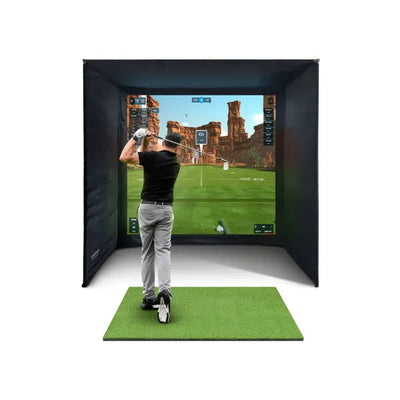

Lighting makes or breaks the visual experience of your home golf simulator. Get it right and the projected image looks crisp, colours pop, and the room feels like a premium entertainment space. Get it wrong and you are squinting at a washed-out image on a dim screen, straining to see where your ball landed. The challenge is that projectors and room lighting work against each other. Your projector needs darkness to produce a vivid image, but you need enough light to see your ball, your clubs, and the floor around you safely.
This guide covers the complete lighting setup for a UK home golf simulator room, including LED positioning, projector optimisation, ambient light control, smart lighting automation, and the common mistakes that ruin projected image quality.
The Core Problem: Projector vs Ambient Light in Your Home Golf Simulator Room
Every projector has a lumen rating measuring how much light it produces. A typical simulator projector outputs 2,500 to 4,500 lumens. In complete darkness, even 2,500 lumens produces a vivid, cinema-quality image. But add ambient light from overhead LEDs, window light, or even a desk lamp, and the projected image starts washing out. The projector light competes with room light, and the room always wins if bright enough.
The solution is not total darkness. You need to see what you are doing. The real solution is controlled lighting: completely dark where the projected image hits the screen, adequately lit everywhere else you need to see, and zero direct light hitting the screen surface from any angle.

Home Golf Simulator Lighting Zones
Think of your simulator room as four distinct zones, each with different lighting requirements that must be managed independently.
Zone 1: The Screen Wall (Keep It Dark)
The wall where your impact screen is mounted should receive zero direct light from any source. No overhead fixtures, no wall sconces, no LED strips, and ideally no reflected light from nearby surfaces. This zone is entirely illuminated by the projector beam. Any windows on this wall need blackout blinds or curtains with no exceptions. Even a small amount of light on the screen surface reduces contrast noticeably and makes the image look hazy and faded.
Zone 2: The Hitting Area (Low, Indirect Light)
You need enough light to see the ball on the tee or mat, identify your club, and position your feet correctly. This light should come from behind you or from the sides, never from in front which would illuminate the screen. LED strip lights mounted along the back wall at floor level or under a shelf behind the hitting position work perfectly. Warm white LEDs at 3000K colour temperature provide good visibility without creating the harsh glare that cool white LEDs produce.
Zone 3: Ceiling and Sides (Minimal)
Overhead lighting should be switched off or dimmed to minimum during play. Bright overhead lights reflect off the screen surface and wash out the projected image significantly. If you need overhead lighting for setup, cleaning, or general room use, install dimmable LED fixtures that can be fully dimmed when playing. Side walls benefit from dark colours like charcoal or navy to minimise reflected light bouncing onto the screen.
Zone 4: Seating and Control Area (Moderate, Shielded)
If your room has a seating area for spectators or a desk for the PC controller, this area can have moderate lighting, but it must be shielded from reaching the screen. A desk lamp with a directional shade, an LED strip under a shelf, or a floor lamp facing away from the screen all work well. The key principle is that no light from this zone reaches the screen surface directly or via wall reflections.
LED Strip Placement for Your Simulator Room
LED strips are the most popular lighting choice for simulator rooms because they are inexpensive, flexible, fully dimmable, and produce very little heat. Here is exactly where to place them for the best results in your setup.
Behind the Hitting Position (Primary Placement)
Mount an LED strip along the back wall at approximately 50 centimetres above floor level. This casts a soft downward glow that illuminates the hitting mat and the area around your feet without any light reaching the screen. Use warm white 3000K strips with adhesive backing. A 5-metre reel costs approximately 10 to 20 pounds from Amazon or Screwfix and covers most back walls in a standard garage or room.
Under the Enclosure Frame (Accent Lighting)
Mounting LED strips under the bottom rail of your SimSpace or enclosure frame creates a dramatic accent lighting effect. Light spills onto the floor around the enclosure base, making the setup look like a premium entertainment installation. This is purely aesthetic and does not help with visibility, but it transforms the room ambiance dramatically. Use RGB strips if you want colour options or stick with warm white for a clean, professional look.
Along Side Walls at Floor Level (Secondary)
If your room is wide and the back wall strip does not illuminate the full hitting area adequately, add LED strips along the base of the side walls. Run them from the hitting position forward to about 1 metre behind the screen, never all the way to the screen itself. Keep them at floor level to prevent any light reaching the screen surface.

Projector Optimisation for Your Home Golf Simulator
Your projector is both the light source and the display for your simulator. Optimising its settings for your specific room conditions makes a significant difference to image quality that you will notice immediately. For a complete projector buying guide, see our projector selection guide.
Brightness and Lumens
For a fully darkened room, 2,500 lumens is adequate and produces a vivid image. For a room with some ambient light such as LED accent lighting or light leaking around blackout blinds, 3,500 or more lumens is recommended. For a room with significant uncontrollable ambient light, 4,500 or more lumens is necessary but the image will still not match a properly darkened room. Note that the lumen rating on the box is the maximum output. Actual output in normal use is typically 70 to 80 percent of the rated figure.
Position and Shadow Avoidance
A ceiling-mounted projector behind the hitting position is the ideal placement. The most common mistake in simulator rooms is placing the projector where your body casts a shadow on the screen during your swing. If you stand between the projector and the screen, every swing creates a moving shadow that blocks the image and is extremely distracting. Ceiling-mounted short-throw projectors or ultra-short-throw projectors placed on the floor just in front of the screen eliminate this shadow issue entirely.
Key Settings to Adjust
Eco mode: Reduces brightness by 20 to 30 percent but also reduces fan noise significantly. In a properly darkened room, eco mode often provides adequate brightness while making the room noticeably quieter during play.
Contrast ratio: Adjust until dark areas of the projected golf course such as shadows, trees, and water hazards look genuinely dark rather than grey. Too much contrast crushes detail in dark areas while too little makes the image look flat and lifeless.
Colour temperature: Set to warm or standard rather than cool. Cool colour temperatures add a blue tint that makes golf course greens look unnatural and washed out.
Keystone correction: If your projector is not perfectly perpendicular to the screen, the image will be trapezoidal rather than rectangular. Use keystone correction to square it up, but note that digital correction reduces resolution slightly. Physical repositioning of the projector is always preferred over digital correction when possible.

Window Treatment for Simulator Rooms
Blackout roller blinds: The most effective and cheapest option. Available from IKEA, Amazon, or Dunelm for 15 to 40 pounds per window. Look for blinds with side channels that block light leaking around the edges. Measure your window recess carefully and order the closest fit available.
Blackout curtains: Heavier and more effective than blinds at blocking light, especially with generous overlap at the edges. They also absorb sound, which is a useful bonus in a simulator room where ball impact noise can be significant. Budget 30 to 60 pounds per window pair.
Window film: Permanent blackout window film blocks all light but cannot be removed without leaving residue. Only use this on windows in a dedicated simulator room that you will not repurpose. Budget 10 to 20 pounds per square metre.
Garage doors: If your simulator is in a garage, the door itself may admit light through gaps, windows, or translucent panels. Seal gaps with draught excluder strip and cover any windows or translucent sections with blackout material cut to size.
Smart Lighting for Your Home Golf Simulator
Philips Hue or IKEA TRADFRI: Smart LED strips and bulbs controlled from your phone. Set up a simulator scene that dims all room lights to the correct levels with a single tap. Switch to a room scene at full brightness when you finish playing. Hue starter kits cost 60 to 100 pounds. TRADFRI kits cost 30 to 60 pounds.
Voice control: Connect smart lights to Alexa or Google Home. Say your command and the room dims to preset simulator levels. Sounds like a luxury but becomes completely second nature within a week of regular use.
Motion sensing: A motion sensor can automatically switch to standby mode when no one is present and brighten to your simulator scene when you enter the room. This saves energy and ensures the room is always ready when you walk in to play.
Wall and Ceiling Colours for Your Simulator Room
Ideal wall colour: Dark grey, charcoal, navy, or very dark green on all walls except the screen wall which is hidden behind the enclosure. The ceiling should also be dark if possible. Light-coloured walls and ceilings reflect ambient light back onto the screen, reducing contrast and making the image look washed out. Dark surfaces absorb this light and create a cinema-like environment that maximises projected image quality.
If dark paint is not practical: Focus on making the ceiling and the walls closest to the screen dark. Use blackout curtains or fabric panels on nearby side walls. Every bit of reflected light you eliminate improves the projected image noticeably.
Flooring: Dark flooring such as dark grey carpet tile or dark vinyl plank absorbs light rather than reflecting it upward onto the screen. If your floor is light-coloured, a dark rug or mat in the area between the hitting position and the screen reduces upward reflections significantly. See our room setup guide for more on flooring options and room preparation.

Home Golf Simulator Lighting Mistakes to Avoid
Overhead spotlights aimed at the screen: Even one spotlight aimed anywhere near the screen wall destroys the projected image quality. If your room has recessed ceiling spots, ensure none are pointed toward the screen.
LED strips on the enclosure top bar: Some guides suggest mounting strips along the top of the enclosure for visual effect. This puts light directly above the screen surface, washing out the top portion of the image. Keep all LED strips below waist height or behind the hitting position.
Cool white LEDs: LEDs at 5000K to 6500K produce harsh, clinical light that creates strong reflections on any glossy surface. Warm white at 2700K to 3200K is much more forgiving and creates a significantly better atmosphere for extended simulator sessions.
Uncovered windows: Even on an overcast UK day, window light significantly reduces projected image contrast and colour vibrancy. Always cover windows with blackout material when playing, regardless of weather conditions outside.
Frequently Asked Questions
Do I need LED lights in my simulator room?
You need some form of ambient lighting to see the ball, your clubs, and the room around you safely. LED strips are the best option because they are dimmable, low-heat, cheap, and can be precisely positioned to avoid the screen. They are for your personal visibility and comfort, not for the simulator itself.
How many lumens do I need for a simulator projector?
Dark room: 2,500 lumens sufficient. Some ambient light: 3,500 or more. Bright room: 4,500 or more but image quality will still be compromised compared to a dark room. Always prioritise room darkening over buying a brighter projector. It is cheaper and more effective. Check our projector guide for specific model recommendations.
Can I use my simulator with the lights on?
You can, but image quality suffers noticeably. Overhead lights wash out the projection and make colours look faded. If you must have room lights on, use a high-lumen projector and dim the lights as much as possible. Smart lighting with a dedicated simulator scene is the best compromise between visibility and image quality.
What colour should I paint my simulator room?
Dark colours on walls and ceiling reduce reflected light and significantly improve projected image quality. Dark grey, charcoal, or navy are ideal choices. If painting the entire room dark is not practical, prioritise the ceiling and walls closest to the screen. A dark room also creates a more immersive, cinema-like atmosphere.
Do LED strips interfere with camera-based launch monitors?
DC-powered LED strips with consistent, non-flickering output do not interfere with camera-based monitors like the GC3S or GC3. Keep strips away from the immediate vicinity of the launch monitor itself. Behind the hitting position is the safest and most effective placement.
Get the full setup right with our complete UK buyers guide and browse simulator bundles to see what is included with each package.

Free Home Golf Simulator Design Consultation
Not sure on space, screen or launch monitor? Chat directly with Tom, OpenGolfer’s founder — he has designed hundreds of home setups and will tell you exactly what fits your room and budget.
- Send your room size (or a photo) — get a tailored layout and spec for your space, ceiling height included
- Personal replies from a real golfer, not a call centre
- Honest advice on what to buy — and what not to
Usually replies within the hour, 8am–8pm · prefer to talk? 02033 768500


Leave a comment