
Home Golf Simulator Projector Setup UK: Throw Distance, Mounting and Alignment (2026)

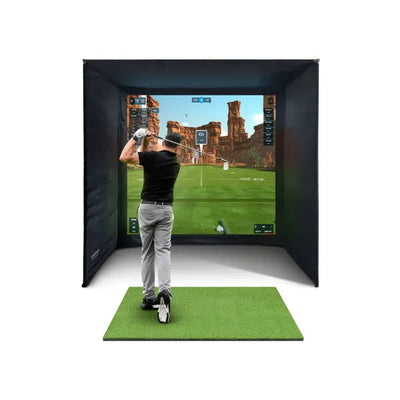
The projector is the visual centrepiece of your home golf simulator experience. A perfectly set up projector makes courses look stunning, with sharp text, vivid greens, and smooth animations. A poorly set up projector produces a washed-out, misaligned image that cheapens even the most expensive launch monitor. The difference between the two often comes down to 30 minutes of careful setup rather than the projector itself.
This guide covers everything UK simulator owners need to know about projector setup: calculating throw distance for your room, choosing the right mounting position, achieving pixel-perfect alignment, eliminating shadows, and optimising image quality for the best possible experience.

Understanding Throw Distance for Your Home Golf Simulator
Throw distance is the distance between the projector lens and the screen. It determines how large the projected image will be. Every projector has a throw ratio that defines this relationship.
Throw Ratio Explained
Standard throw (1.5:1 to 2.0:1): For every 1 metre of image width, the projector needs 1.5 to 2.0 metres of distance. A 2.5m wide screen needs the projector 3.75 to 5.0m away. This is fine for long rooms but problematic in short garages.
Short throw (0.5:1 to 1.0:1): The projector sits much closer. A 2.5m wide screen needs only 1.25 to 2.5m. Ideal for most UK garage setups where total room depth is 5 to 6 metres.
Ultra-short throw (0.2:1 to 0.4:1): The projector sits right against the screen wall, typically on the floor or a low shelf. A 2.5m wide screen needs only 0.5 to 1.0m. Eliminates shadows entirely. More expensive.
Calculating for Your Room
Measure your screen width. Check your projector's throw ratio in its specifications. Multiply screen width by throw ratio to get the required projector distance.
Example: SimSpace SIM 3 screen width is approximately 2.7m. With a short-throw projector at 0.8:1, you need 2.7 x 0.8 = 2.16m between lens and screen. In a 5.5m deep garage with the screen against the front wall, the projector mounts at approximately 3.3m from the front wall, well behind the hitting position. Perfect.
Check our projector buying guide for recommended models at each throw ratio.

Projector Mounting Options for Your Home Golf Simulator
Ceiling Mount (Most Popular)
A universal ceiling mount (20 to 50 pounds) suspends the projector upside-down from the ceiling behind the hitting position. The projector's built-in image flip function corrects the upside-down image.
Advantages: Out of the way, clean look, stable, no floor space used. The projector is above head height and behind you, so no shadows during your swing.
Installation tips: Find ceiling joists with a stud finder. If mounting to plasterboard only, use heavy-duty spring toggles rated for your projector's weight plus a safety margin. Ensure the mount allows vertical and horizontal angle adjustment.
Shelf Mount
A shelf behind and above the hitting position. The projector sits right-side-up on the shelf. Easier to access for adjustments and maintenance.
Advantages: No ceiling drilling, easy to adjust, accessible. Good for renters or those who cannot modify ceilings.
Disadvantages: Takes up wall space, vibration from nearby ball impacts can shift the projector over time. Ensure the shelf is firmly secured and the projector has rubber feet.
Floor-Mounted Ultra-Short Throw
An ultra-short throw projector sits on the floor or a low table directly in front of the screen wall, projecting upward at a steep angle. The image bounces off a mirror inside the projector onto the screen.
Advantages: Zero shadow possibility, very short rooms work, clean ceiling, dramatic image quality. Disadvantages: expensive projectors, ball damage risk if not protected, some models have visible hotspots at steep angles.
Eliminating Shadows on Your Home Golf Simulator Screen
Shadows happen when your body blocks the projector's light path to the screen during your swing. This is the most common projector complaint.
The geometry: If the projector is at ceiling height behind you, the light travels over your head to the screen. Your shadow falls on the floor, not the screen. The projector needs to be both behind your hitting position and above head height.
Short-throw solution: Short-throw projectors mounted on the ceiling close to the screen project at a steep downward angle. Your body is below the projection cone. Shadows are minimal or non-existent.
Ultra-short throw solution: With the projector on the floor against the screen wall, the light travels upward. Your body is entirely outside the projection path. Zero shadows guaranteed.
Standard throw with shadows: If your only option is a standard throw behind you at low height, accept that driver swings will cast a brief shadow. Most golfers find this is less distracting than expected once they start playing.

Aligning Your Home Golf Simulator Projector Image
Physical Alignment First
Always adjust physical position before using digital correction. Move the projector mount left, right, forward, or back until the image is centred on the screen. Adjust the tilt until the image is square. This preserves full resolution.
Keystone Correction
If the projector cannot be physically positioned perfectly perpendicular to the screen, use keystone correction to square the image digitally. Most projectors offer both vertical and horizontal keystone. Use as little as possible as digital keystone reduces effective resolution.
Lens Shift
Higher-end projectors offer lens shift, which moves the projected image up, down, left, or right without reducing resolution. If your budget allows, choose a projector with lens shift over one with only keystone. It produces a sharper result.
Focus
Display a detailed image or text screen and adjust focus until the centre and edges are both sharp. Some projectors have a single focus ring. Others have zoom and focus independently. Adjust zoom first to fill the screen, then focus for sharpness.
Optimising Image Quality for Your Home Golf Simulator
Brightness mode: Use the projector's brightest mode if your room has any ambient light. Use cinema or eco mode only in completely dark rooms.
Contrast: Increase until dark greens on courses look genuinely dark, not grey. Reduce if bright areas look bleached.
Colour temperature: Warm or standard. Cool adds blue tint making grass look unnatural.
Sharpness: Moderate setting. Maximum sharpness adds artificial edge enhancement that makes text and straight lines look pixelated. Reduce until text on the course scoreboard looks clean without visible halos around edges. The default setting is usually close to optimal for simulator use. Avoid third-party picture enhancement modes labelled Vivid or Dynamic as these oversaturate colours and add processing latency.
Fan mode: Auto or eco. High-altitude mode increases fan speed unnecessarily in most UK locations and adds noise. See our lighting and projector guide for more display tips.

Projector Maintenance for Your Home Golf Simulator
Dust the lens monthly. Use a microfibre cloth or lens pen. Dust on the lens creates soft spots in the image.
Clean the filter quarterly. Most projectors have a removable air filter. Dust buildup causes overheating and triggers thermal protection. A clean filter runs cooler and quieter.
Replace the lamp when dim. Projector lamps dim over time. When the image looks noticeably duller than when new, replace the lamp. Most lamps last 3,000 to 5,000 hours. At 10 hours per week, that is 6 to 10 years. Replacement lamps cost 50 to 150 pounds.
Lamp-free projectors: LED and laser projectors do not have replaceable lamps. They maintain brightness for 20,000+ hours. Higher initial cost but zero lamp replacement cost. Increasingly common in 2026 models. These are also quieter and produce less heat, which matters in small simulator rooms during summer months.
Cable management: Route HDMI and power cables neatly along the ceiling using cable clips or conduit. Loose cables hanging from a ceiling-mounted projector look messy and can snag during installation or maintenance. Spend 15 minutes on cable management during setup for a much cleaner result. Use white cable trunking on a white ceiling or dark trunking on a dark ceiling to make runs virtually invisible. Include a service loop near the projector mount so you can lower the projector for cleaning without disconnecting cables. For long HDMI runs over 5 metres, use an active HDMI cable or HDMI over Cat6 adapter to maintain signal integrity and avoid intermittent image dropouts during play.
See our room environment guide for keeping your projector running cool.
Frequently Asked Questions
What throw ratio do I need for a UK garage?
Most UK single garages are 5 to 6m deep. A short-throw projector (0.5:1 to 1.0:1) works best. Standard throw projectors struggle in rooms under 5m. Ultra-short throw works in any depth.
How do I stop shadows on my simulator screen?
Mount the projector on the ceiling behind your hitting position, above head height. Short-throw projectors mounted close to the screen also reduce shadows. Ultra-short throw projectors on the floor eliminate shadows completely.
Does my projector need to be perfectly level?
Ideally yes. A level projector with no keystone correction gives the sharpest image. Small misalignments can be corrected with keystone but at slight resolution cost. Use a spirit level during installation.
How bright should my projector be?
Minimum 2,500 lumens for a fully dark room. 3,500+ for rooms with any ambient light. 4,500+ for rooms with windows. Darker rooms need less brightness, so invest in blackout treatment rather than a brighter projector. Check our bundles for projector recommendations.
Can I use a TV instead of a projector?
You can, but a TV cannot withstand ball impacts. If you use a TV, it must be mounted behind the impact screen with adequate protection. Most golfers prefer projectors for the larger, more immersive image. A 100-inch projected image costs less than a 100-inch TV.
Common Projector Problems and Solutions for Your Home Golf Simulator
Image flickers or strobes. Usually a loose HDMI connection. Check both ends of the HDMI cable. Try a different cable. If using a long HDMI run (over 5 metres), use an active HDMI cable or HDMI over Ethernet adapter.
Image is blurry on one side. The projector is not perpendicular to the screen. The side closest to the projector is in focus while the far side is soft. Adjust physical position to make the projector face the screen squarely.
Rainbow effect on DLP projectors. Some DLP projectors produce a visible colour wheel effect, especially in peripheral vision. This is a characteristic of single-chip DLP technology. If it bothers you, choose a 3LCD projector instead.
Projector overheats and shuts down. Ensure adequate ventilation clearance around the projector. Clean the air filter. In hot garages during summer, use eco mode to reduce heat output. A small USB fan pointed at the projector exhaust vent can help in extreme heat.
Buzzing or humming noise. Normal for lamp-based projectors. Eco mode reduces fan speed and noise. Laser and LED projectors are inherently quieter with no lamp buzz. If the noise bothers you during quiet putting practice, consider upgrading to a lamp-free model.
Projector Recommendations by Home Golf Simulator Bundle
Each launch monitor bundle has slightly different projector considerations based on the setup and room requirements.
With the Mevo Gen 2 bundle: The Mevo sits behind you on a tripod, so the projector must be mounted high enough that the Mevo's line of sight to the ball is not blocked. A ceiling-mounted short-throw projector works perfectly. Budget 300 to 600 pounds for a suitable model.
With the GC3S bundle: The GC3S sits on the floor beside the ball, well clear of the projection path. Any mounting position works. The GC3S's camera sensors are sensitive to flickering light sources, so choose an LED or laser projector over lamp-based models with high-frequency flicker.
With the GC3 bundle: The GC3 includes an overhead camera bar. The projector and overhead camera must not interfere with each other. Mount the projector at least 50cm away from the camera bar to avoid thermal interference, and ensure the projector's light does not shine directly into the overhead camera lens.
All projector setups benefit from the velour-lined SimSpace interior, which eliminates reflective interference and improves both projected image contrast and launch monitor camera accuracy for your home golf simulator.
Get your full setup planned with the UK buyer's guide and browse simulator bundles.

Free Home Golf Simulator Design Consultation
Not sure on space, screen or launch monitor? Chat directly with Tom, OpenGolfer’s founder — he has designed hundreds of home setups and will tell you exactly what fits your room and budget.
- Send your room size (or a photo) — get a tailored layout and spec for your space, ceiling height included
- Personal replies from a real golfer, not a call centre
- Honest advice on what to buy — and what not to
Usually replies within the hour, 8am–8pm · prefer to talk? 02033 768500


Leave a comment