
Browse the docs
Set up your simulator
How do I set up a Garmin Approach® R50? Step by step
 Tom Hayward, founder of OpenGolfer · Last reviewed · 5 min read
The short answer
Charge it, turn it on and follow the screen: language, Wi-Fi (2.4GHz), then your Garmin account. Place it 0.5m beside the tee, facing it, at mat height. Run an HDMI cable from its A/V port to the projector. Hit when the light is solid green. Courses need a Garmin Golf membership.
Send our sim experts your room size or a photo. They’ll tell you what fits, free.
Check my room on WhatsAppWhat's in the box
Garmin packs the R50 with a carrying case, the AC adapter and power cord, 250 club tracking stickers and the paperwork. If you bought our Garmin Approach® R50 golf simulator package, the enclosure, Tee Turf hitting mat (its rubber base is built in), any side netting you added and the BenQ AH500ST short-throw projector with its floor case come in separate boxes, with a setup guide. Neither the R50 nor the package includes an HDMI cable, so order one before delivery day.
What you need ready
- Your Wi-Fi name and password. The R50's radio works on the 2.4GHz band. That's the slower, longer-reaching of the two networks most routers broadcast. If your router shows two names, pick the one without "5G".
- An email address for a Garmin account. This is a free login that keeps your shots and any membership. The R50 asks you to make one during setup.
- An HDMI cable that can carry 1080p and reaches the projector. HDMI is the standard lead that carries picture and sound.
- A wall socket near the mat. The battery lasts up to 4 hours, and you can play while it charges.
- Your phone, if you want the free Garmin Golf app for stats. You don't need it to play.
- A Windows PC, only if you want GSPro, E6 Connect or Awesome Golf. Garmin's own course game runs on the R50 itself.
Where it goes in the room
Our rooms start at 3.0m wide, 2.7m high and 4.2m long. A ceiling of 3m or more is ideal, and I plan on about 2.5m from the ball to the screen.
The R50 is a camera unit that sits beside the ball, so it needs no extra space behind you. From Garmin's manual:
- Place it about 0.5m (1.5ft) to the side of the tee, facing the tee.
- Keep it at roughly the same height as the tee, so stand it on the mat or on something level with it. You don't need to level it, because it allows for uneven surfaces.
- The target line runs parallel to the front of the unit, so square the front up with the middle of the screen.
- Keep shiny floors, mirrors and glass out of its view.
Step-by-step setup
- Open the cable door on the back, plug the AC adapter into the power port and switch it on at the wall.
- Press the button to turn the R50 on.
- Choose your language when asked.
- Pick your Wi-Fi network and type the password.
- Sign in to your Garmin account, or create one. You can add guest profiles for friends later.
- Let it update. Firmware is the unit's own built-in software, and the R50 downloads and installs it over Wi-Fi by itself. You can also use Garmin Express on a computer with a USB-C cable.
- If you play left-handed, go to Settings, Profile, Handedness.
- Put a club sticker on the top centre of each club face, away from any white markings. Your putter doesn't need one.
- Stand the R50 0.5m beside the tee, facing it.
Connect to the projector
The R50 sends the picture itself, so you don't need a PC to start.
- Open the cable door and plug the HDMI cable into the A/V port.
- Plug the other end into an HDMI input on the projector.
- Turn the projector on and select that HDMI input.
- On the R50, go to Settings, External Display. Set the aspect ratio, and use Center Line Offset to slide the picture left or right until it sits in the middle of the screen.
The R50 outputs up to 1080p, and sound travels down the same cable. If you play GSPro or another PC program, the HDMI cable goes from the PC to the projector instead. The R50 then talks to the PC over Wi-Fi: select Connect on the home screen, choose the simulator app and follow the steps.
Where the sound comes out
The R50 has no speaker of its own for the in-game sounds. Garmin's manual gives two routes: down the HDMI lead with the picture, or to a Bluetooth speaker paired in Settings. In our package the BenQ AH500ST projector plays them through its built-in 10W mono speaker, which does the job for a practice session. If you want proper speakers, the projector isn't the place to take the sound from. Its only sound output is a mono 3.5mm jack and it has no HDMI ARC. Put an HDMI switch with audio extraction between the R50 and the projector instead: the picture carries on to the projector and the stereo sound goes to the speakers or soundbar. Sound and TV in a simulator room goes through the options.
First-shot check
- Select Practice on the home screen. The driving range is free.
- Place a ball so it shows inside the hitting area on the R50's screen, with the logo facing the unit.
- Wait for the status light to turn solid green, then hit.
You should see ball speed, launch and spin on the R50, and the shot flying on the big screen. If the light never goes green, move the ball back inside the hitting area.
Playing courses
Practice mode and the driving range cost nothing, and the Garmin Golf app is free. Home Tee Hero is Garmin's built-in course game, with over 43,000 courses, up to four players and a weekly tournament. It needs a Garmin Golf membership, which Garmin UK lists at £8.99 a month or £89.99 a year.
On a Windows PC, the R50 also works with GSPro ($250 a year), E6 Connect (TruGolf only shows prices after you log in) and Awesome Golf (£14.99 a month, £149.99 a year or £349.99 for life, with a 14-day free trial). Garmin's own staff say TGC 2019 doesn't work with the R50.
The three things that most often go wrong
It won't join the Wi-Fi
Choose the 2.4GHz network, not the "5G" one. If the garage is a long way from the router, a Wi-Fi extender or mesh point in the room fixes it. You can retry any time from Settings, Wi-Fi.
The projector says "no signal"
Check that the projector is on the right HDMI input, that the cable is in the A/V port behind the cable door, and that the cable can carry 1080p. The External Display menu only appears once a screen is connected.
It misses shots or shows no club data
Garmin's usual causes are a shiny garage floor, reflective trainers, a mat the same colour as the ball, and foam balls. Keep the R50 level with the mat, and replace a sticker once it's worn or dirty.
Official help from Garmin
- Approach® R50 Getting Started video from Garmin Support. Garmin's own short link, garmin.com/videos/approachR50setup, goes to it.
- Owner's manual (online) and PDF version
- R50 support page and the missed-shots article
- Garmin Express for updates from a computer

Setup at a glance
| Step | What you do | Time |
|---|---|---|
| 1 | Plug in at the wall and press the button | 2 min |
| 2 | Choose language, join 2.4GHz Wi-Fi, sign in to Garmin | 10 min |
| 3 | Let the software update install | Varies with your broadband |
| 4 | Stick club stickers on the top centre of each face | 5 min |
| 5 | Place the R50 0.5m beside the tee, facing it, at mat height | 2 min |
| 6 | HDMI from the A/V port to the projector; set External Display | 5 min |
| 7 | Practice mode: wait for solid green, hit | 1 min |
Times are my estimates for a first setup. Placement and connection steps are from Garmin's R50 owner's manual (January 2026). The battery lasts up to 4 hours, and the R50 works while plugged in.
Best practice
- Order the HDMI cable earlyGarmin doesn't include one, and neither does our package. Get a 1080p-capable cable long enough to reach the projector before delivery day.
- Set it at mat heightGarmin says to place the R50 at roughly the same height as the tee. Standing it on the mat edge or a matching block works well.
- Logo towards the unitGarmin suggests turning the ball's logo or markings to face the R50, especially with matt-finish balls.
- Centre the picture in softwareUse Settings, External Display, Center Line Offset to move the image rather than moving the projector.
- Charge before long storageGarmin says to charge to at least 50% before storing it for months, and to recharge fully afterwards.
Gotchas to avoid
- 5GHz Wi-FiThe R50's radio is 2.4GHz. If it can't see or join your network, choose the router's 2.4GHz name rather than the 5G one.
- No membership, no coursesPractice and the driving range are free, but Home Tee Hero course play needs a Garmin Golf membership.
- Shiny floors and trainersGarmin lists polished garage floors and reflective shoes as causes of missed shots. Use the mat and plain footwear.
- Five wrong passcodesIf you set a device passcode and enter it wrongly five times, the R50 locks and needs a factory reset.
- Practice Mode goes quiet over HDMIOwners on Garmin's forum report no sound in Practice Mode over HDMI until the lead is unplugged and reconnected. Course play is unaffected. As of October 2026, Garmin's published changelogs don't mention a fix.
Our recommendation
The R50 is the easiest unit to set up: no PC, one HDMI cable and a few on-screen steps. Add a membership when you want courses.
- If you only want practice and the driving range
- Skip the membership and the PC. The R50 and an HDMI cable are enough.
- If you want to play real courses
- Add a Garmin Golf membership for Home Tee Hero, which runs on the R50 itself.
- If you want GSPro graphics
- Add a Windows gaming PC and run the HDMI cable from the PC instead.
What you'll need
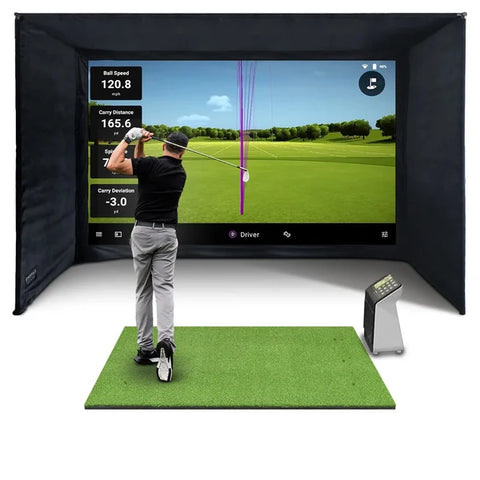 The complete R50 setupGarmin Approach® R50 Home Golf Simulator Package - Complete Setup, UKEnclosure, mat, side barriers and short-throw projector around the R50.from£6,487.98
 The HDMI cablePXL 10m HDMI Active Optical Cable, 4K 60Hz HDR (18Gbps)Not in the R50 box or the package. 10m reaches from the R50 or PC to the projector.£29.99
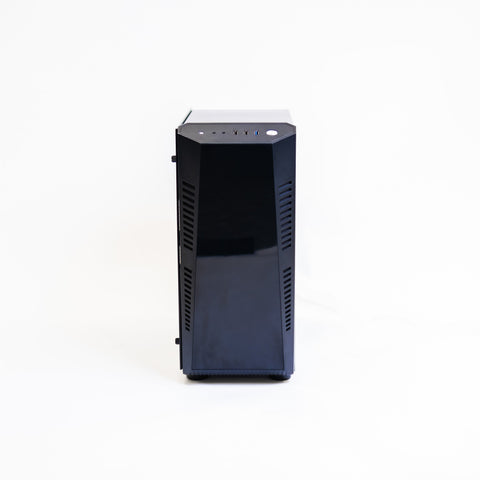 Only if you want GSPro or E6Golf Simulator Gaming PC (HD Spec)Third-party course software runs on a Windows PC. Home Tee Hero doesn't need one.£1,790
Questions people ask
Do I need a computer to use the R50?
No. The R50 runs Garmin's driving range and Home Tee Hero on its own 10-inch screen and sends the picture to a projector or TV through an HDMI cable. You only need a Windows PC for third-party software such as GSPro.
Is an HDMI cable in the box?
No. Garmin's manual says a standard HDMI cable is not included. It needs to handle at least 1080p, because that's the most the R50 sends. Measure the run from the R50 to the projector before you buy.
Does the R50 work for left-handers?
Yes. Set Handedness under Settings, Profile. Garmin's manual places the R50 about 0.5 m to the side of the tee, facing the ball, so a left-hander moves it to the other side of the ball before hitting. Mark both spots with tape if two of you share the bay.
Do I have to level it?
No. Garmin says the R50 allows for uneven surfaces, so levelling isn't needed. It should sit at about the same height as the tee and face the ball from 0.5m away.
How do I update it?
Over Wi-Fi it downloads and installs updates by itself. You can also check from Settings, Software Update, or connect it to a computer with a USB-C cable and use Garmin Express.
Still unsure? Ask our experts about this page on live chat or WhatsApp. Send your room size and they’ll tell you straight.
Ask an expertGo deeper

Planning a home simulator? Get the Sim Buyers email.
Twice a week from our sim experts: what's new in our buyer guides and docs, launch monitor and software news, and early offers.
Tuesdays and Fridays. Unsubscribe any time.


